
ZenUI Launcher is an Android launcher for personalizing your home screen and organizing the apps you use. It combines visual controls, including themes, wallpapers, fonts, and transition effects, with tools for arranging folders and finding apps or contacts. Its clearest benefit is bringing appearance settings and everyday navigation into one launcher, so you can shape both how your screen looks and how you access its contents. Built-in AppLock and Hide App features also provide controls for restricting access to selected apps.
What can you change about the home screen’s appearance?
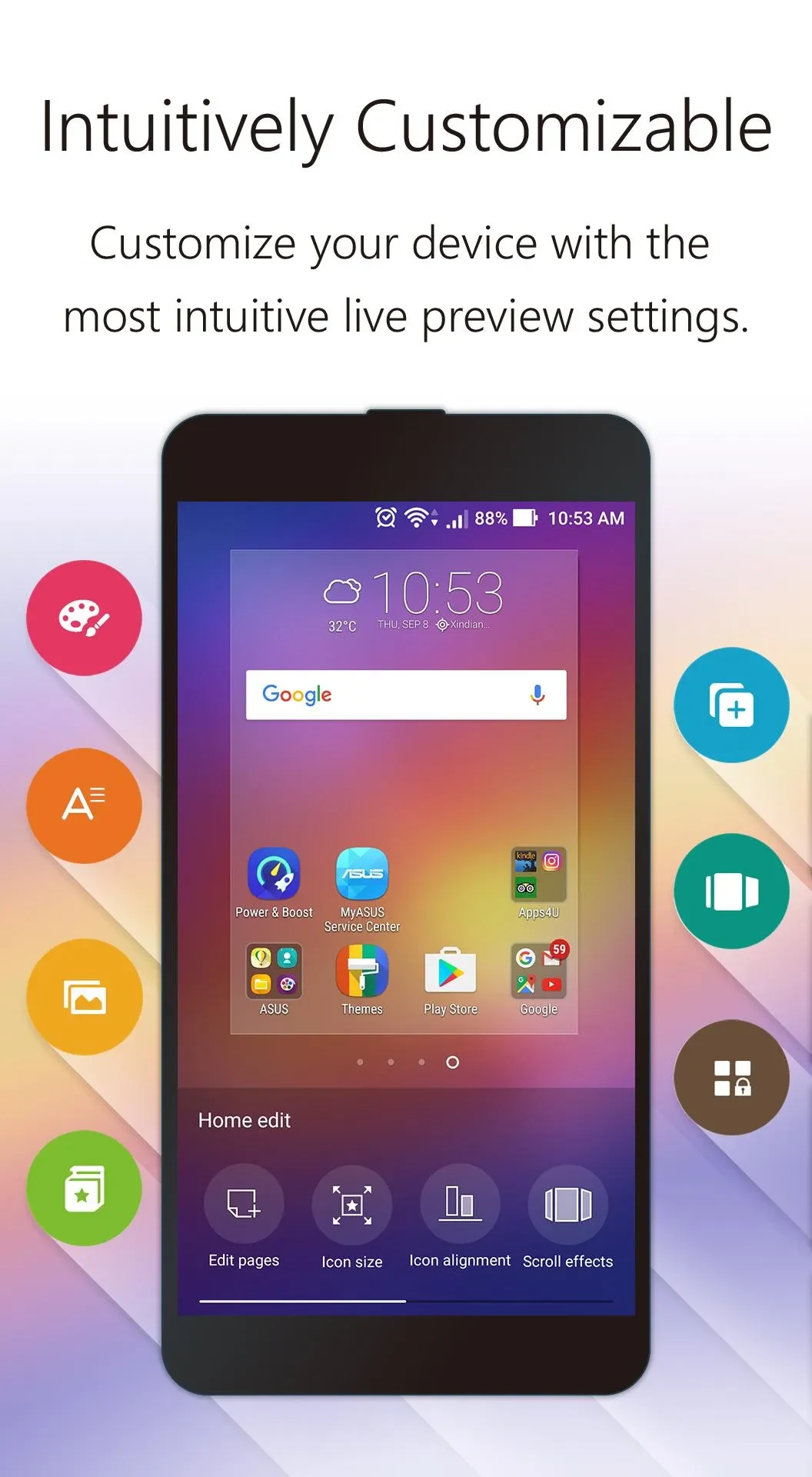
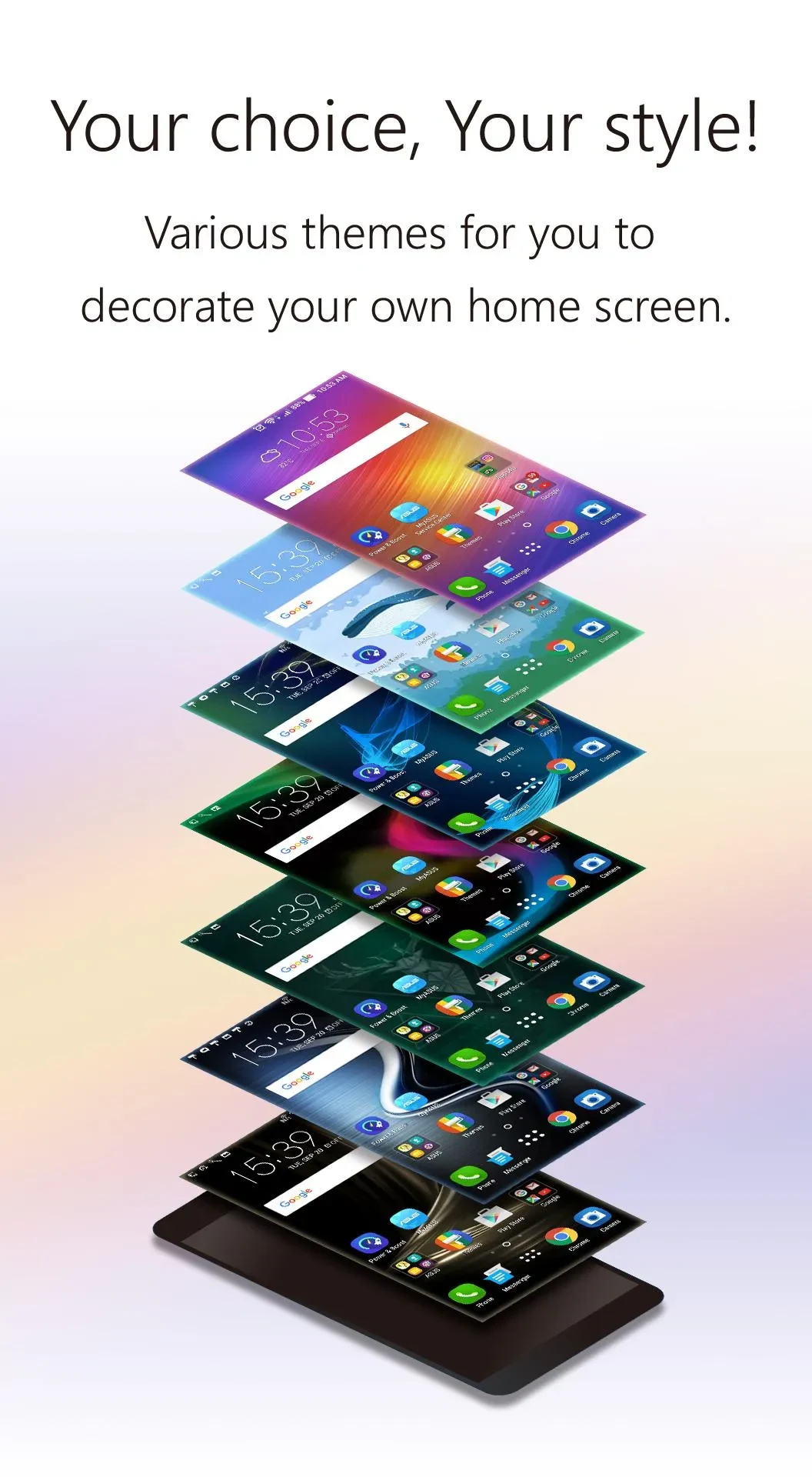
You can choose wallpapers, themes, folder styles, animation effects, and transitions. Separate wallpapers can be set for the home screen and lock screen. Font style, font size, and icon size controls offer further ways to adjust the presentation of apps and widgets across the home screen, lock screen, and all apps screen.
A live preview lets you see changes while customizing wallpapers, themes, fonts, and other elements. The ZenUI (ASUS) theme shortcut also provides access to complimentary themes and icon packs, while the wallpaper selection includes free options.
How do the two app layouts and Smart Group work?
ZenUI Launcher offers One layer and Two layer modes. One layer mode places all apps on the home screen, while Two layer mode lets you access apps using a shortcut. These options let you choose between keeping apps directly on the home screen and reaching them through a separate entry point.
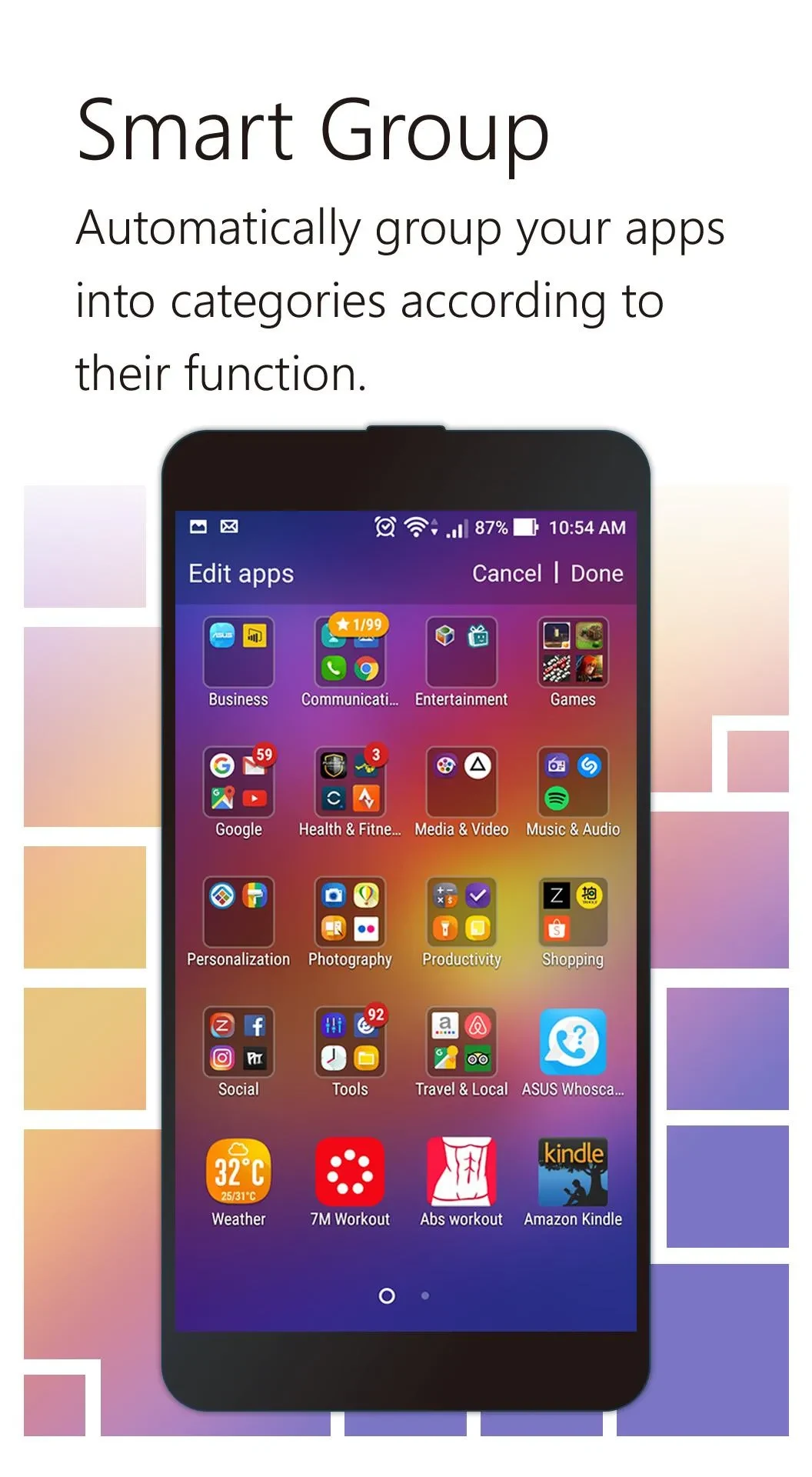
Smart Group automatically groups related apps into folders. Alongside the folder styling controls, this gives you a way to organize your app collection without relying entirely on manual grouping.
What can you access with swipe gestures?
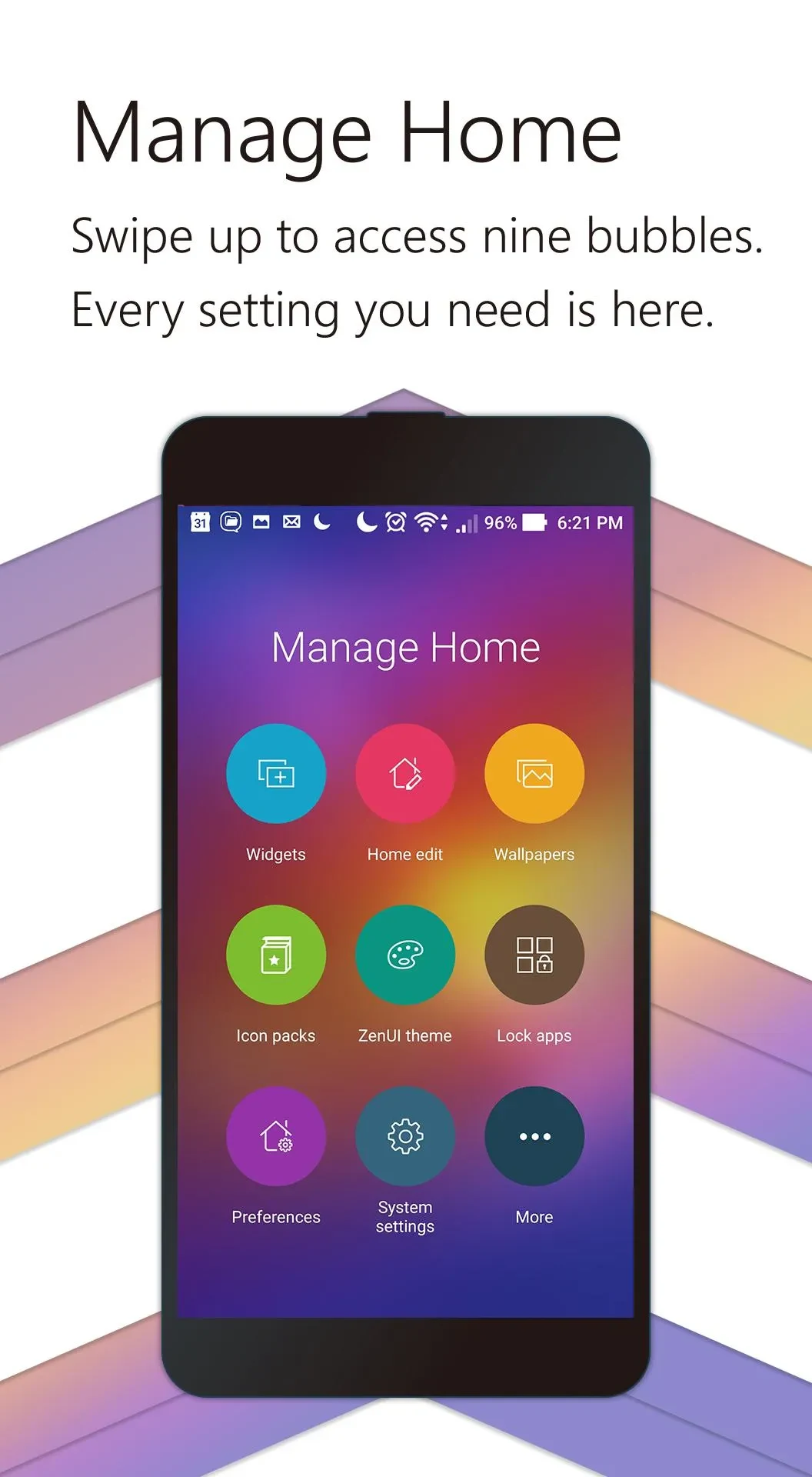
Swiping up on the home screen opens setting shortcuts for apps, widgets, wallpapers, icons, and system themes. These shortcuts bring the launcher’s main customization areas together.
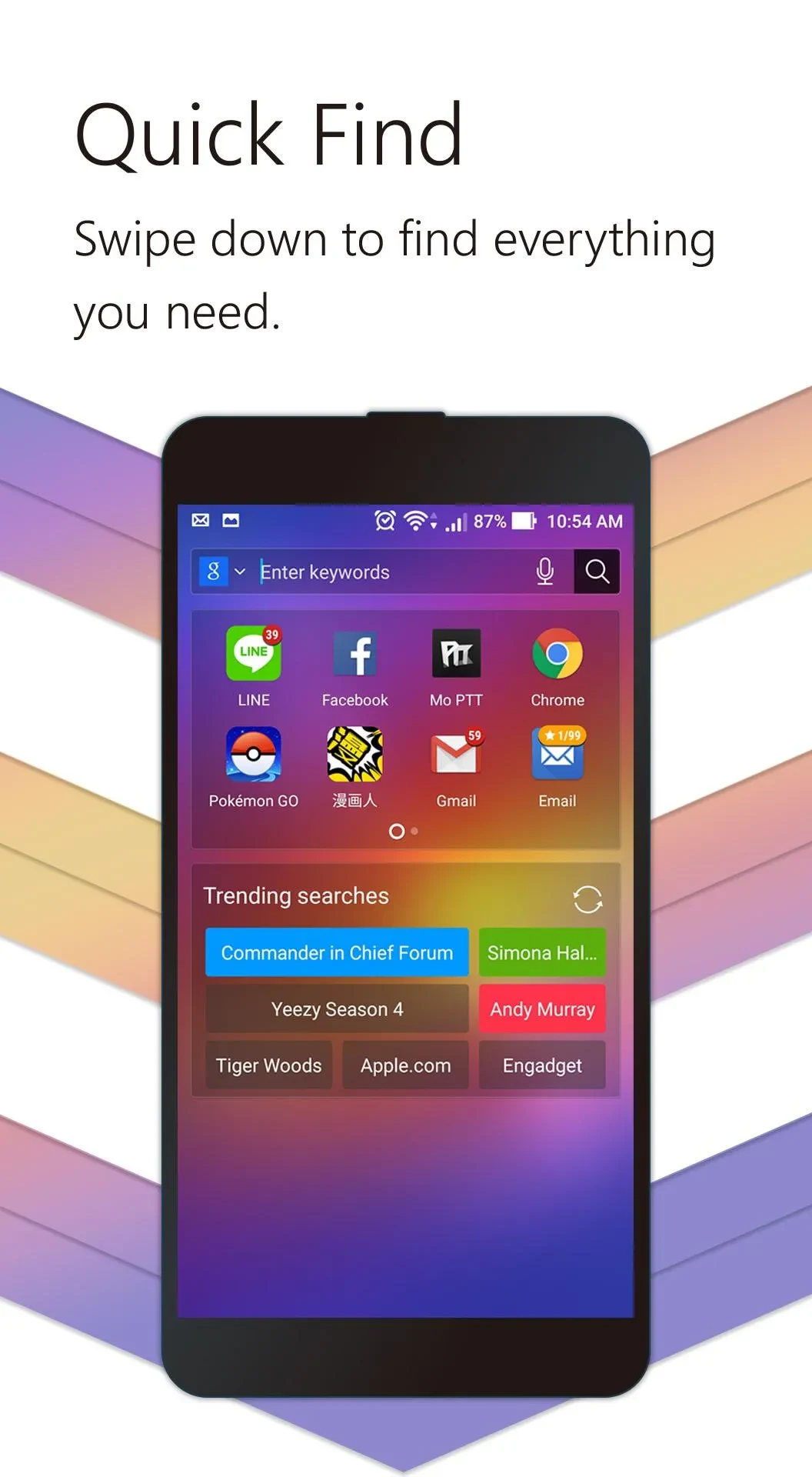
Swiping down opens Quick Find, which searches apps, contacts, and trending topics. A separate Contextual App Discovery feature presents recommended Android apps, adding an app-discovery option alongside search for items already on your device.
What controls are available for private apps?
The integrated AppLock feature lets you restrict access to apps, while Hide App provides a way to hide selected apps. These are distinct controls: one addresses access, and the other addresses visibility within the launcher.
ZenUI Launcher may suit users who want detailed visual customization together with a choice of app layouts, automatic folder grouping, and gesture-based shortcuts. Its app-locking and hiding tools are additional options for those who also want control over how selected apps are accessed or displayed.