



Xodo PDF Reader & Editor helps users read PDF and common Microsoft Office documents while handling practical document tasks in one application. Its tools cover document uploading, editing, format conversion, file merging, signature collection, and other operations that support everyday work with digital files.
Adjust the reading experience
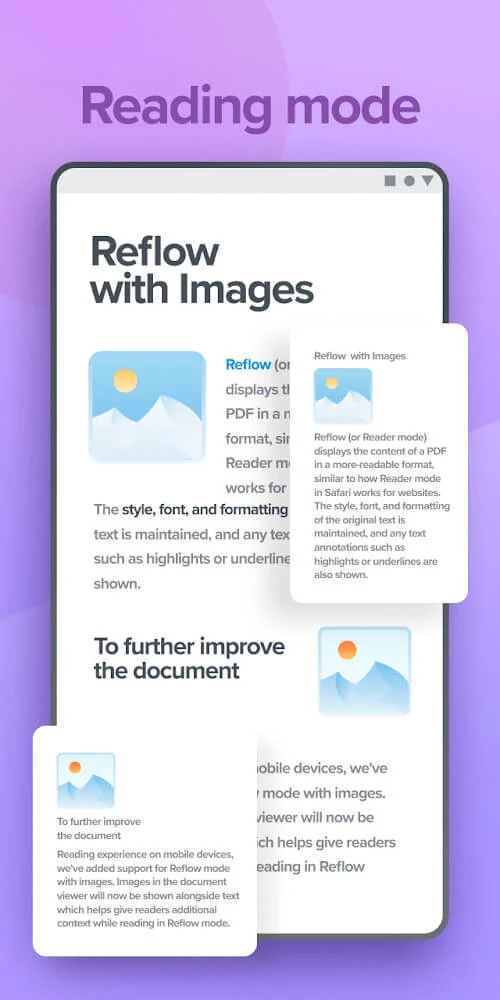
The reading interface can be adapted to suit different documents and preferences. Users can choose among page colors such as white or dark, switch between landscape and portrait orientation, and rotate pages when a document opens in an inconvenient direction. These controls are useful when reading files with different layouts or viewing them from different positions.
The page view also supports changing between single- and double-page presentation. A swipe can shrink the page and switch the viewing mode, while selected words or sentences can be tapped for editing and highlighting. Together, these controls provide a way to move from general reading to focused work on particular passages.
Work with PDF and Office files
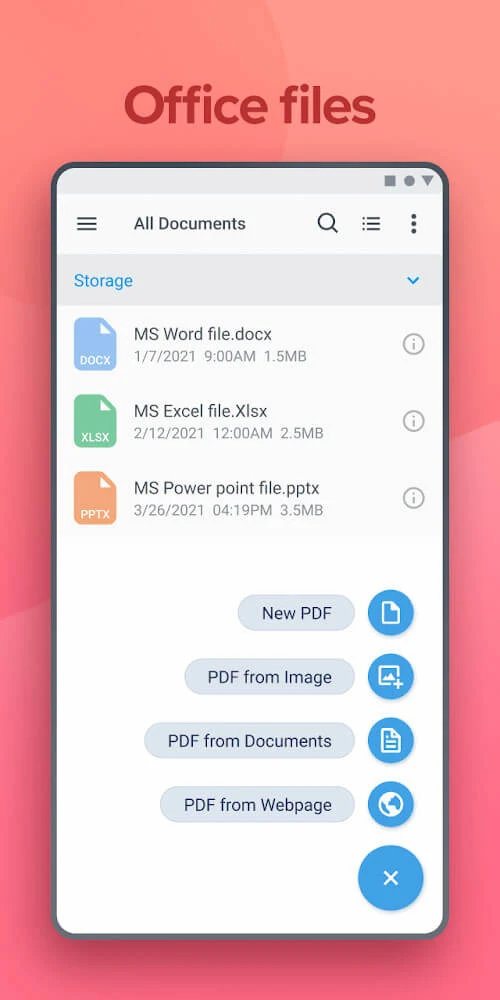
Alongside PDF documents, Xodo PDF Reader & Editor supports reading standard Microsoft Office files, including Word, Excel, and PowerPoint documents. This gives users a single place to open several common document types rather than limiting their reading to PDFs.
Office documents can also be saved as PDF when that format is more suitable for sharing or printing. The application is therefore designed for both reviewing source files and preparing a PDF version for use elsewhere. Its broader document tools include editing, conversion, merging, uploading files, and collecting signatures, although the source does not detail the individual steps for each operation.
Mark important information and add notes
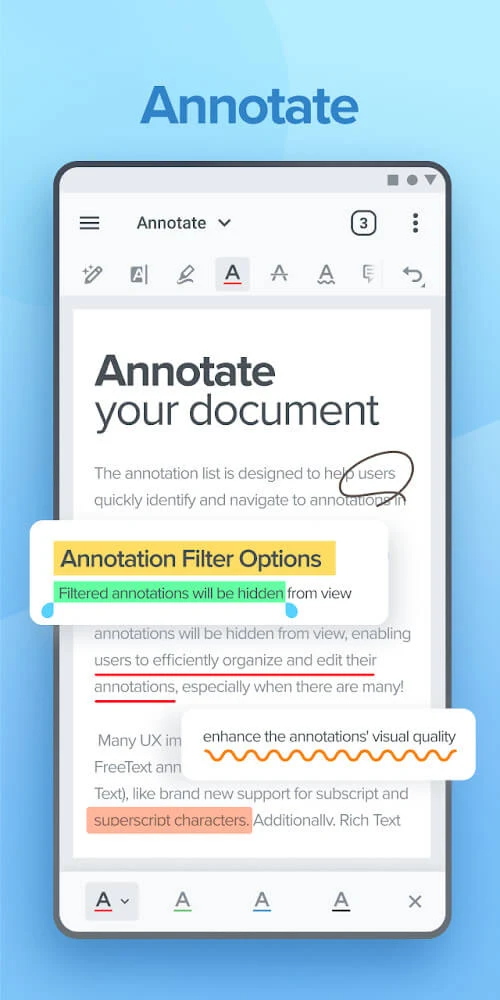
Important words and sentences can be highlighted with different colors. Users can choose from multiple highlighting styles and colors to make significant passages easier to distinguish during later reading.
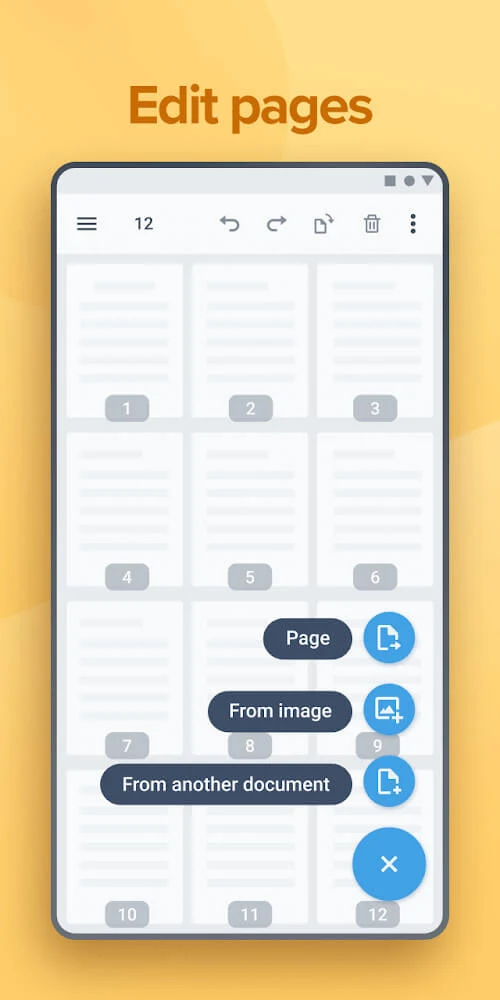
For structured documents, an outline view lists headings from the file. Selecting a heading takes the reader to its corresponding page, which can simplify movement through documents with appendices or several sections. Users can also insert a blank page after a selected page and add notes related to the material they have read, providing a dedicated space for written observations.