

Winlator is a user-friendly game emulator that simulates a Windows environment on Android devices. It addresses the need to run selected Windows desktop applications and PC games without using a traditional PC. Users can create separate configurations for different programs, adjust graphics quality, resolution, CPU performance, input methods, and key layouts, and use those settings without changing another game’s setup. The clearest benefit is flexibility: Winlator can bring older PC games, productivity software, design tools, and utilities to a phone or tablet, including offline after installation and setup.
What types of Windows software can Winlator run?
Winlator is designed to run Windows x86 and x64 applications in its simulated environment. The source lists productivity software such as Microsoft Word and Excel, design programs including Photoshop and GIMP, and development tools such as Visual Studio. It also mentions compatibility with legacy Windows XP environments and Windows 7 standards, including Microsoft Office 2010, Adobe Photoshop CS6, and Paint.NET.
Compatibility can vary by application and configuration, so these examples describe supported types rather than a guarantee that every program will run in the same way. Winlator is intended for users who want to access selected Windows applications on Android rather than replace every function of a desktop PC.
Can it run PC games on a phone or tablet?
Winlator can be used to run PC games on Android, with older titles described as having better support than newer games. The source gives Fallout 3, Deus Ex, Deus Ex: Human Revolution, Mass Effect 2, and The Elder Scrolls IV: Oblivion as examples of games that can be run through the app. Performance depends on the Android device and its processor, while newer games may be less optimized because of hardware limitations.
Games that use Steam may require command-line adjustments for older versions. For Unity games, the documented guidance is to set the Box86 or Box64 preset to “Stability” to help avoid crashes. These settings are intended for cases where a particular game needs additional configuration rather than as a universal requirement.
How can graphics and performance be adjusted?
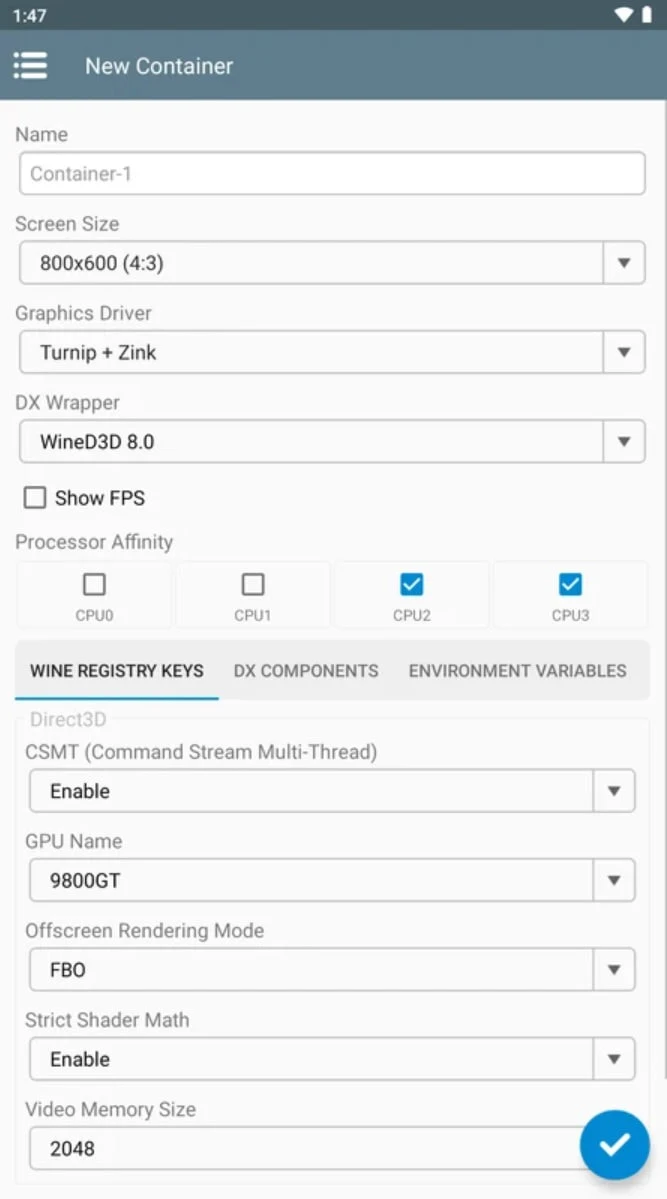
Each application or game can have its own configuration. Users can change graphics quality, resolution, CPU performance, input methods, and key layouts to suit the program and the Android device. This separation means that adjusting one game does not have to alter the settings used by another.
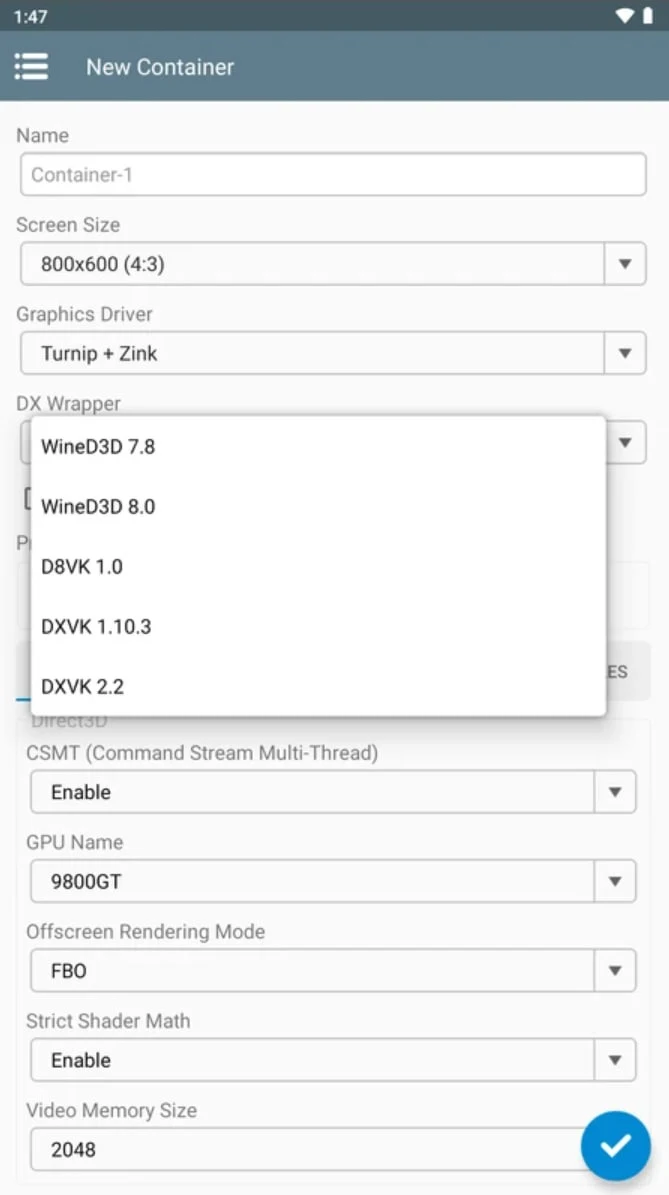
Winlator includes DXVK support, which translates DirectX 9, 10, and 11 calls to the Vulkan API. Container settings also provide driver choices such as Turnip, Zink, and VirGL, along with selectable Wine versions. The source describes resource allocation for the device’s CPU and GPU as part of its performance approach, while actual results remain dependent on the hardware and the selected configuration.
What are containers and input options used for?
Containers let users create and manage multiple virtual environments with separate settings. A container can use its own resolution, graphics driver, and Wine version, which is useful when different applications need different combinations. Winlator also provides built-in testing tools for checking graphics quality and compatibility before settling on a configuration.
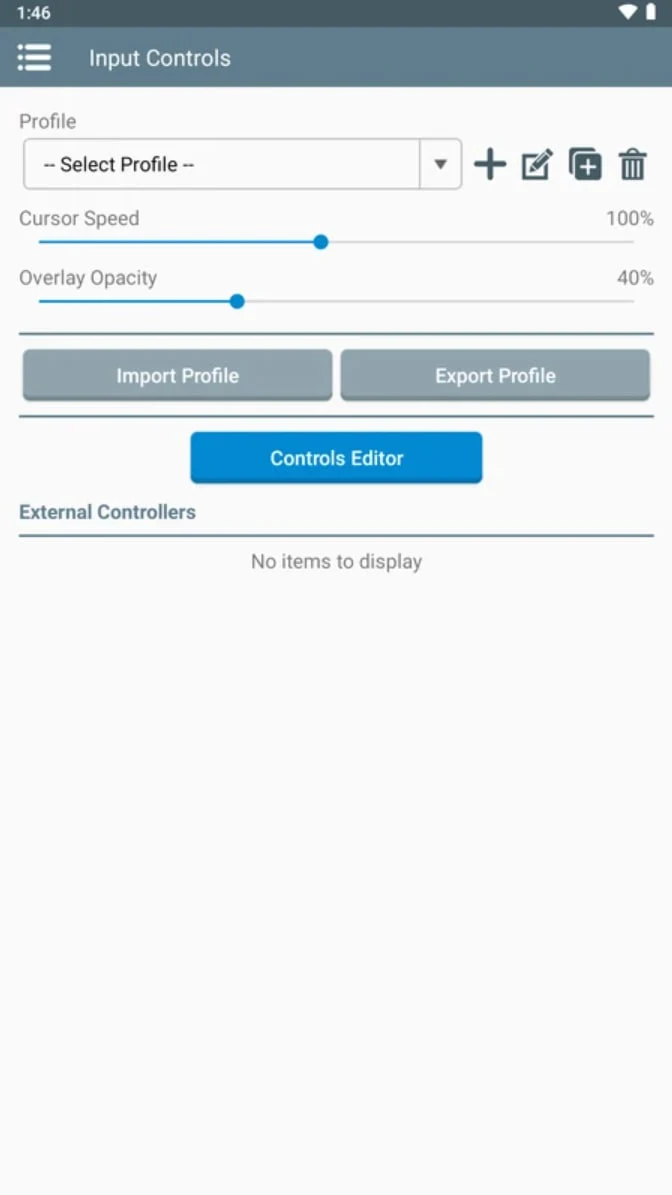
For controls, users can choose on-screen touch controls or connect external keyboards, mice, and gamepads. The source also documents the RTS Keyboard plugin for touch controls, Xbox and PS5 controller connections through OTG, and button remapping under the Input Control settings. This gives users several ways to adapt desktop software or games to an Android screen.
Can Winlator be used without an internet connection?
Once Winlator has been installed and set up, the source states that it can run Windows applications and games offline. This can be useful when using configured software or playing supported games away from an internet connection. The offline description applies after setup; the source does not specify how each individual Windows application handles its own connection requirements.
Winlator may suit Android users who want to experiment with Windows programs, play selected older PC games, or maintain separate configurations for software with different graphics, driver, and control needs. It is particularly relevant to users willing to adjust containers and performance settings, while results will differ according to the application, game, and Android device.