

WIN-10 Simulator is an educational simulation application designed to help users learn how to navigate the Windows 10 operating system within a safe environment. By replicating the familiar desktop experience on a mobile device, the app addresses the main task of teaching OS navigation and interface interaction without any risk of damaging a real computer system. Its clearest supported benefits include a fully interactive desktop structure, a lack of annoying full-screen advertisements, support for multiple languages, and built-in camera functionality that lets users capture photos or videos inside the simulated environment.
How does the WIN-10 Simulator recreate the desktop experience?
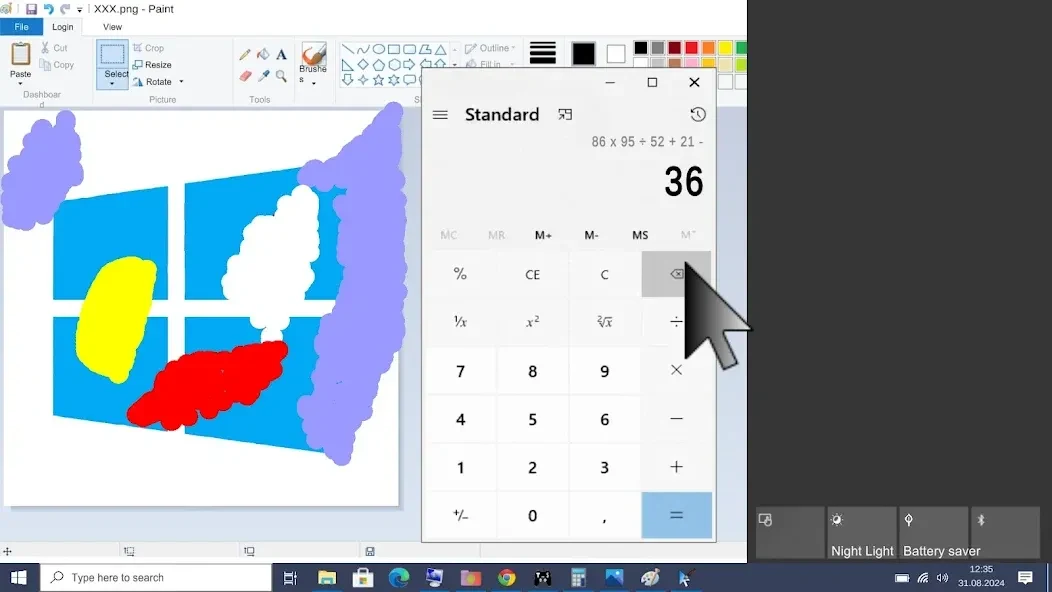
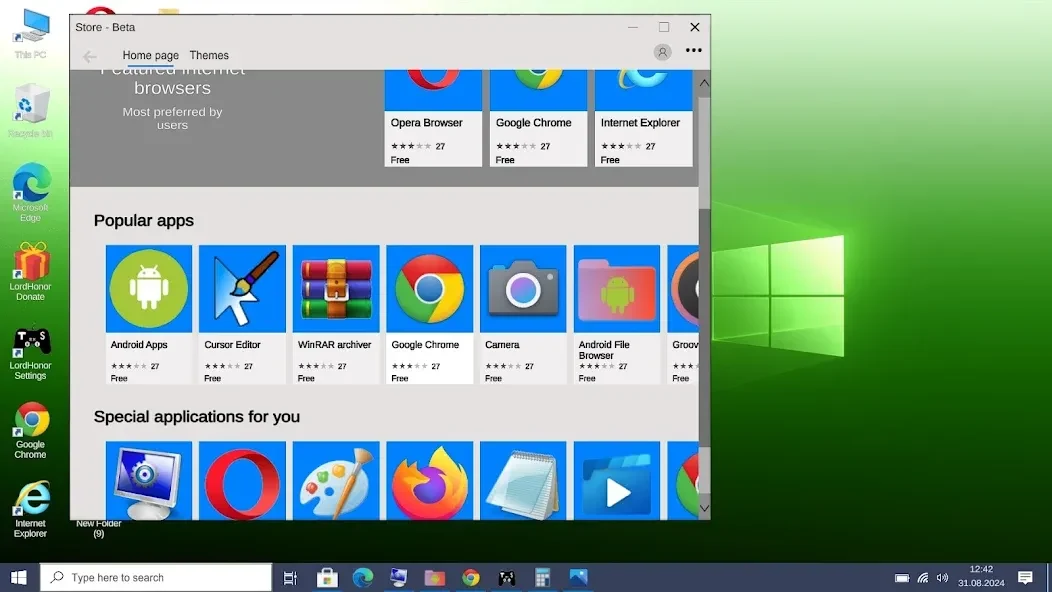
The application models key components of the Windows 10 interface to deliver an authentic visual and auditory feel. Upon your first login, you can install the simulated OS, choose to control the environment using either touch input or a mouse, and access standard applications from the start menu or search bar. To enhance realism, the app incorporates familiar system sound effects, notification audio cues, and even the humming noise of a real computer fan. Users can also surf the internet using Google Chrome and Microsoft Edge browsers.
What desktop and system settings can be customized?
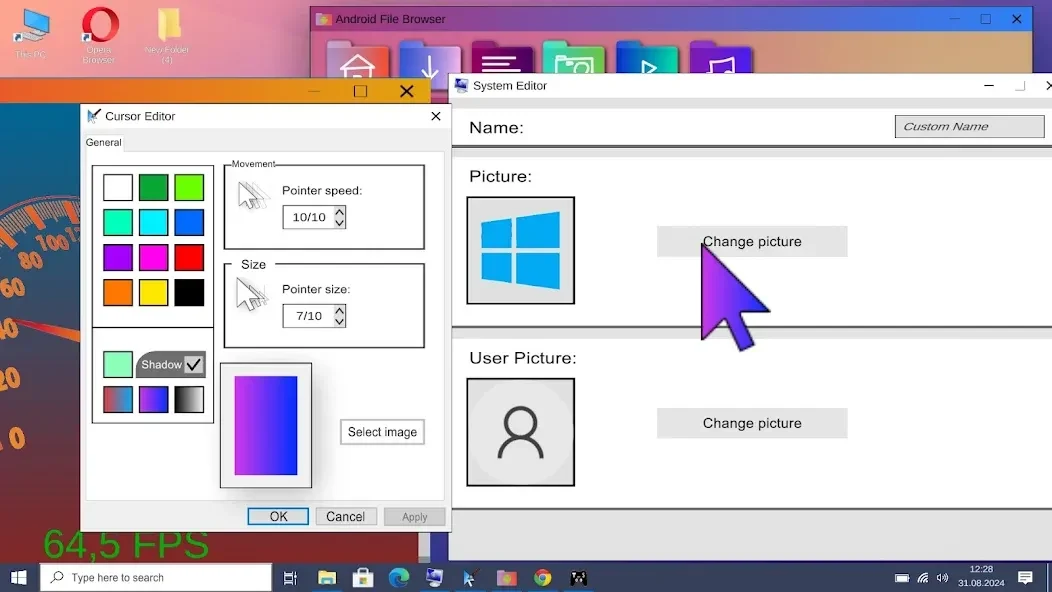
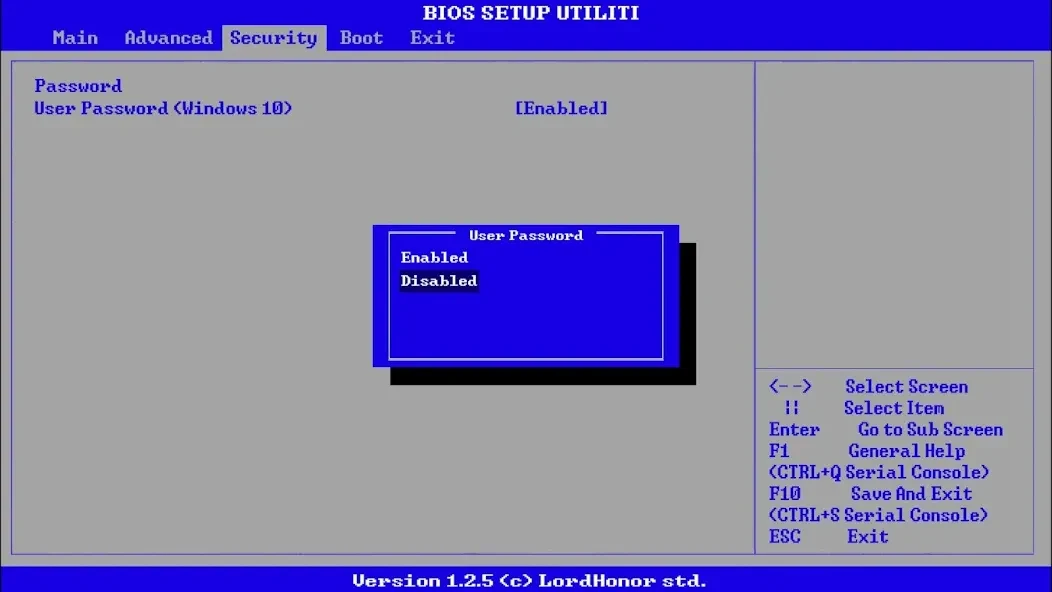
Users have access to several customization options to tailor their virtual environment. Through the settings menu, you can alter backgrounds, adjust Windows color schemes, set a personal computer password, and toggle between night mode and eye-protection mode. Additional controls let you adjust screen brightness, turn off or restart the computer, and access a BIOS menu. Furthermore, the LordHonor Settings application allows you to access Android settings as well as adjust the size and speed of your mouse cursor.
What media and file management options are available?
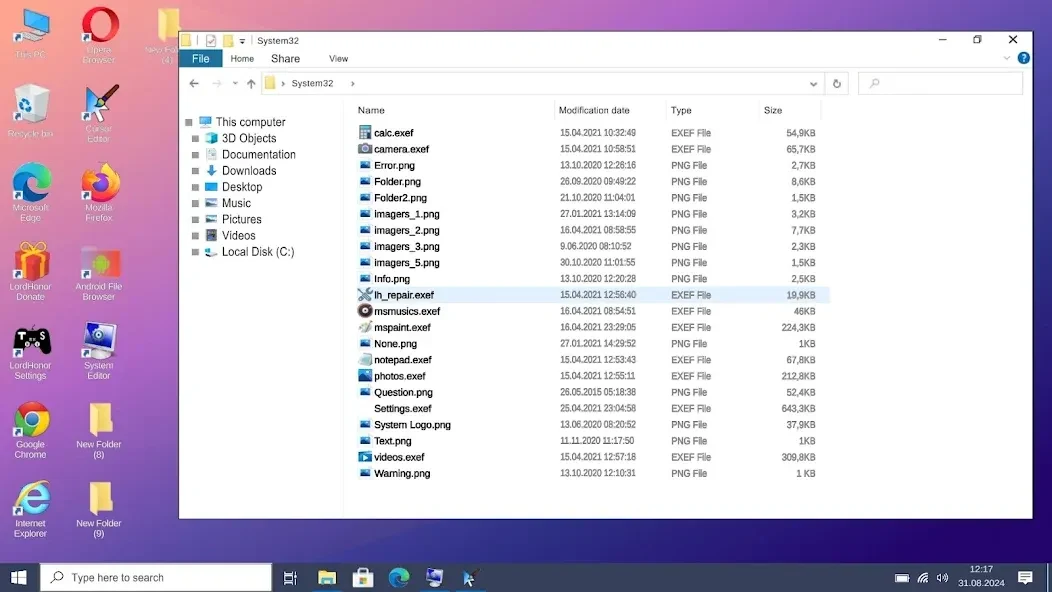
The simulation allows users to interact with files and media through a virtual file explorer. You can open photos, videos, and music files directly from the explorer interface. Additionally, the camera application lets you utilize your smartphone camera as a webcam to take photos within the simulated desktop workspace. You can also play games via the internet browser inside the virtual environment.
Who is this simulation tool best suited for?
This application is well-suited for curious beginners, learners, and trainers who want a risk-free environment to practice navigating a Windows 10 interface. Because it serves as a virtual recreation and visual demonstration rather than a fully functioning computer operating system, it is not suitable for advanced users, professionals, or productivity tasks requiring actual PC software installations or complex file manipulation.