

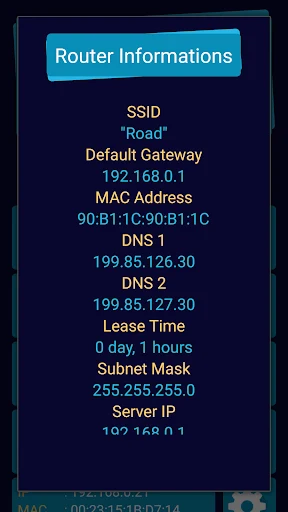


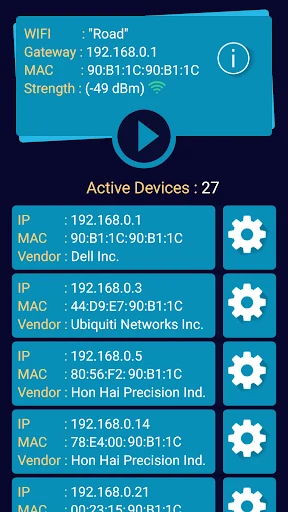
WiFi Hacker Detector scans a current Wi-Fi network and shows how many devices are connected, along with details that can help users make sense of their network. Its main task is to identify connected devices and display information such as IP addresses, MAC addresses, device names, types, and manufacturers. The app also presents router and signal-related information, including a distance measurement between the phone and router. These details may help when checking a slow connection or looking into a device that is not familiar.
What can a network scan show?
The scan displays the number of connected devices and information for individual entries. This includes IP and MAC addresses, as well as device name, type, and manufacturer where available. The source describes examples such as phones, computers, printers, laptops, and access points; devices may be connected over Wi-Fi or by modem cable.
The app also shows the user’s own IP and MAC addresses alongside those of other devices. Seeing these details together can help users compare the devices they recognize with the list found on the network. The scan is described as starting with a single button.
What router and signal details are available?
WiFi Hacker Detector provides information about the network IP address, router MAC address, router type, and manufacturer. It also reports Wi-Fi signal strength and a measured distance between the phone and router. The distance information may help users compare signal conditions in different places at home or at an office and consider where to position a device.
The app is also described as showing available network services and other Wi-Fi data. These details offer context about the network in addition to the connected-device list.
Can it help investigate a slow or unfamiliar connection?
When a connection seems slow, users can scan the network and review which devices are listed. Device names, types, manufacturers, and network addresses can help them spot entries they do not recognize. The app presents information for inspection; the source does not say that it blocks devices or confirms whether a connection is unauthorized.
What should users know about setup and use?
The app is described as lightweight, with a straightforward interface and scan animations. It does not require root access, and the source describes it as free with unobtrusive ads. These points may suit someone who wants a simple network overview without a complex setup. It is most relevant to users who want to inspect connected devices or review router and signal information; the listed details are the app’s monitoring tools, not a guarantee that every device can be identified.