
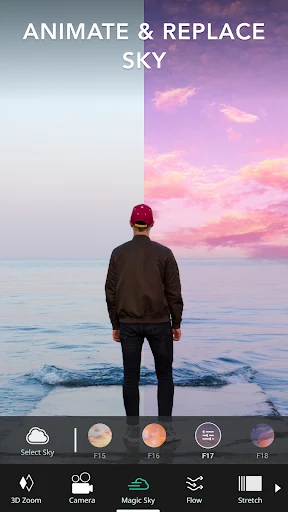
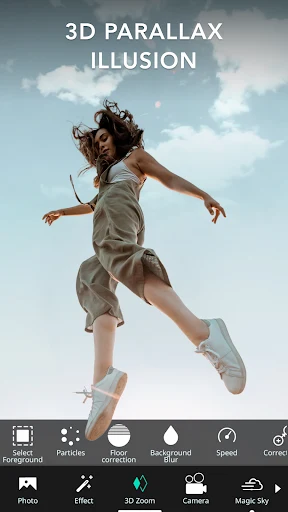
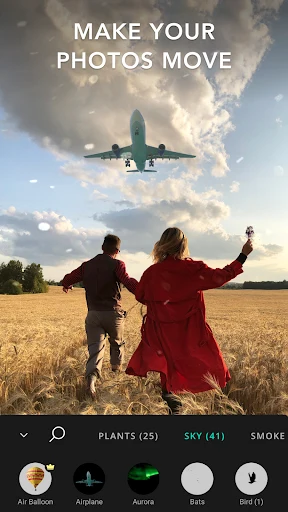
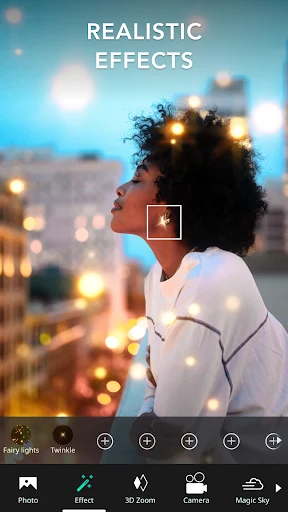
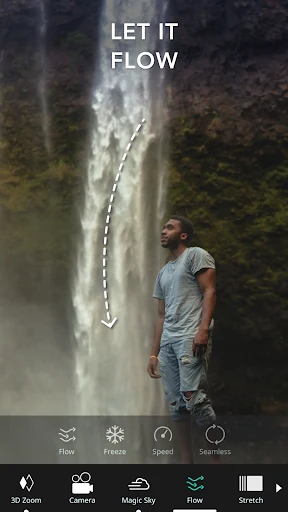
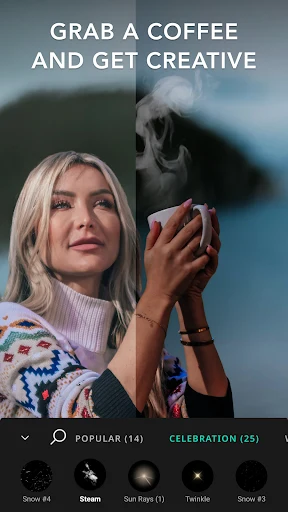
VIMAGE is a photo editing and animation application that turns still images into animated pictures, GIFs, or videos. Its main purpose is to let users select a photo, place visual effects over chosen areas, and adjust the appearance and movement of those effects. The app also includes a broader set of editing controls for refining color, light, framing, and decorative elements before saving the finished result.
Build a moving image from a still photo
The central workflow begins with an image selected from the device gallery. Users can choose an effect from the app’s built-in collection and place it over the photo. The effect can be repositioned, rotated, duplicated, masked, or removed while the image is being edited. These controls are intended for creating a living-photo appearance in which selected parts of an otherwise still image contain visible motion.
Effect properties can be changed through on-screen slider controls. The documented controls include speed, duration, color, blur, brightness, and saturation, allowing users to alter both the appearance and behavior of an effect. The effect can also be moved to a preferred position, and additional effects may be added where the selected version of the app permits more than one overlay.
Use visual effects, filters, and overlays
VIMAGE provides visual effects, presets, filters, and overlays for changing the style of an image or animation. These elements can be combined with the main photo-editing controls rather than being limited to a single fixed appearance. Users can experiment with color filters and other visual treatments, then refine the result by changing hue, brightness, saturation, contrast, and gloss.
The editing tools also support selective changes to the composition. Users can crop an image, rotate it in different directions, flip it, sharpen it, or blur unwanted objects in the frame. Frames are available as an additional decorative option. Text and emoji can be added to the artwork, while sounds can be added to animations according to the supplied feature description.
Adjust the composition and visual style
In addition to animated overlays, the app works as a general image editor for preparing a photo before or alongside motion effects. Users can modify the image’s color and lighting characteristics, including hue, brightness, saturation, contrast, and gloss. These adjustments provide control over the relationship between the original photograph and the added animation.
Basic transformation tools help users change how the image fits the final composition. Cropping can remove unwanted outer areas, while rotation and flipping can change its orientation. Sharpening can emphasize image detail, and blur can be used on selected unwanted elements. The available frames, filters, and effects provide further ways to change the visual presentation without requiring a separate editing application.
Save the result as a GIF or video
After editing, the documented saving process provides format choices for GIF or video output. The supplied instructions describe selecting the upload icon, choosing a format, exporting, and then saving the result. Another documented output is an MP4 video file, which can be saved on the phone or shared through social media accounts.
The free version has stated limits on the editing result. It allows one effect to be overlaid on a photo, places a watermark on the finished image, and produces lower-resolution edited photos. The source states that adding two or more effects and removing the watermark requires the premium version. Both the free and paid versions are described as allowing users to create living photos, while the available editing scope differs between them.
Follow a straightforward editing sequence
The supplied usage instructions describe a short sequence for creating an animation. After opening VIMAGE, the user can access the device library and select a photo. From the Effects section, the user chooses an effect and inserts it into the image. The effect can then be moved and adjusted with the toolbar, including changes to properties such as color and duration. The plus control can be used to add another effect when supported by the selected version.
When the composition is ready, the export controls provide the route to saving. The user selects the upload icon, chooses GIF or video as the format, selects Export, and then chooses Save. This workflow keeps the source image, effect placement, adjustments, and output selection within the same editing session.
Consider the editing limitations
The supplied information presents VIMAGE as an accessible tool for users who do not have advanced image-editing experience, but it also identifies usability concerns. In particular, the mask tool is described as lacking calibration: the registered masking area may appear slightly away from where the screen was touched. The source also notes that some effects may be less useful than others. These details matter when precise masking or a carefully controlled result is required.
Account registration is not required for basic use according to the supplied FAQ material. Registration is described as an option for sharing photos and connecting with other users, so users can work with the app without creating an account. Social media sharing and community interaction are documented as supporting activities, while the primary editing function remains the creation and export of animated images.