
Overview
Video.Guru is an Android video editor for assembling and refining clips with both conventional editing tools and AI-assisted features. After importing footage, users can cut, split, and join clips, then add filters, transitions, music, and subtitles. The app also supports multi-layer editing, speed changes, and text treatments, giving creators several ways to shape a video in one workspace. AI tools are described for removing video backgrounds, enhancing video quality, and generating subtitles from speech. For people preparing vlogs, gaming edits, or other short-form projects, the range of editing and audio options can help take a clip from rough assembly to an exportable video.
What You Can Do
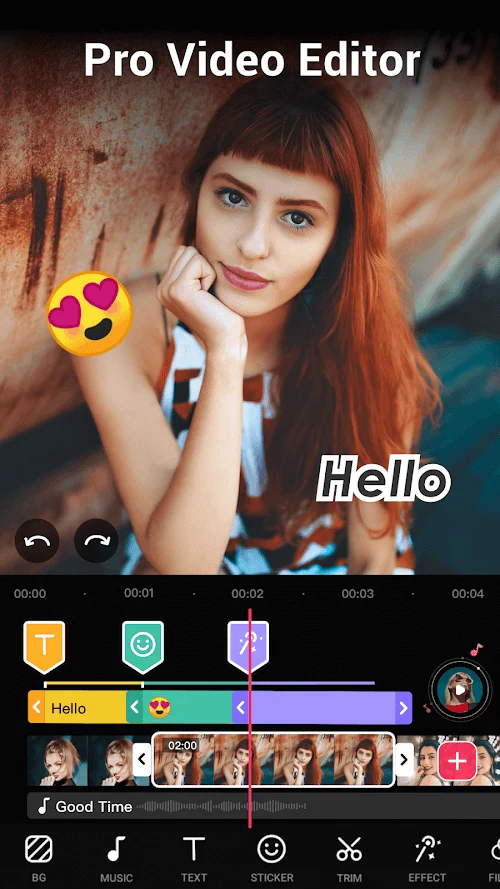
⭐ Arrange footage with multi-layer editing. The layered timeline lets users combine video elements, including picture-in-picture compositions, to build a more detailed edit rather than relying on a single sequence of clips.
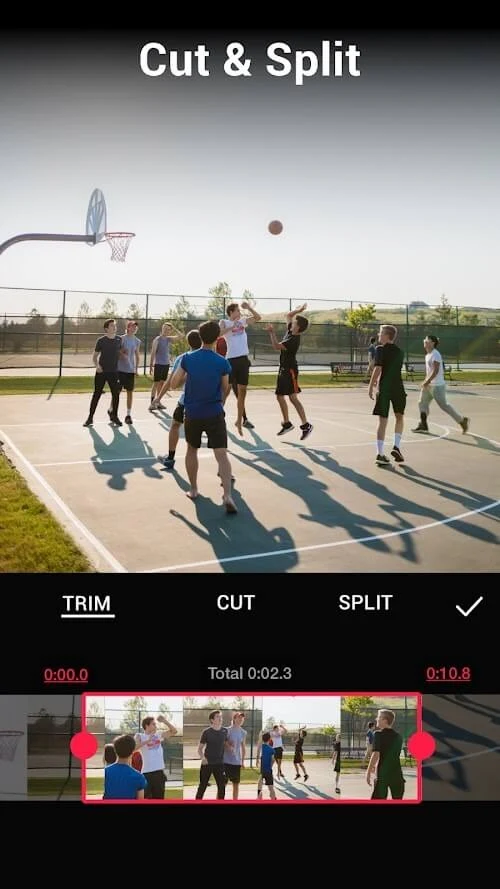
⭐ Trim and shape clips using basic editing controls. Video.Guru supports cutting, splitting, and splicing imported videos, which helps users remove unwanted sections and bring selected moments together.
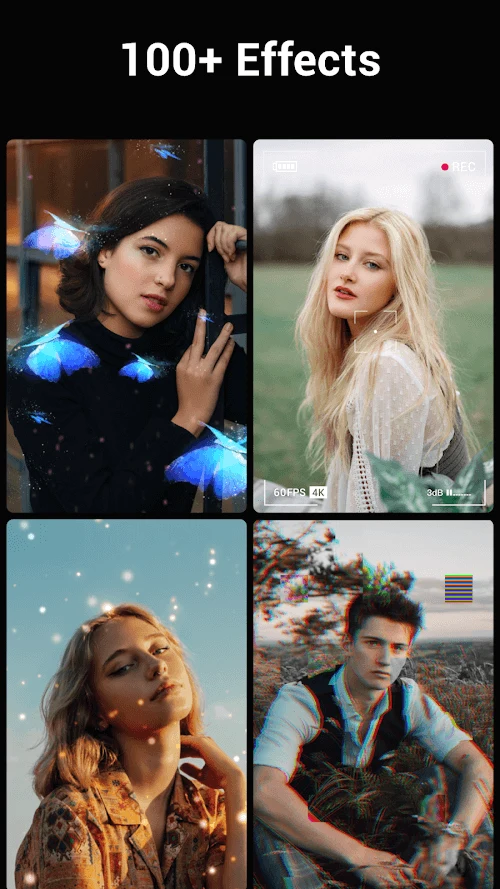
⭐ Change the look of footage with filters and visual adjustments. The source describes filter and color options, including effects that can alter a scene’s appearance and address lighting. It also mentions video blur and background-color adjustments as ways to customize a project.
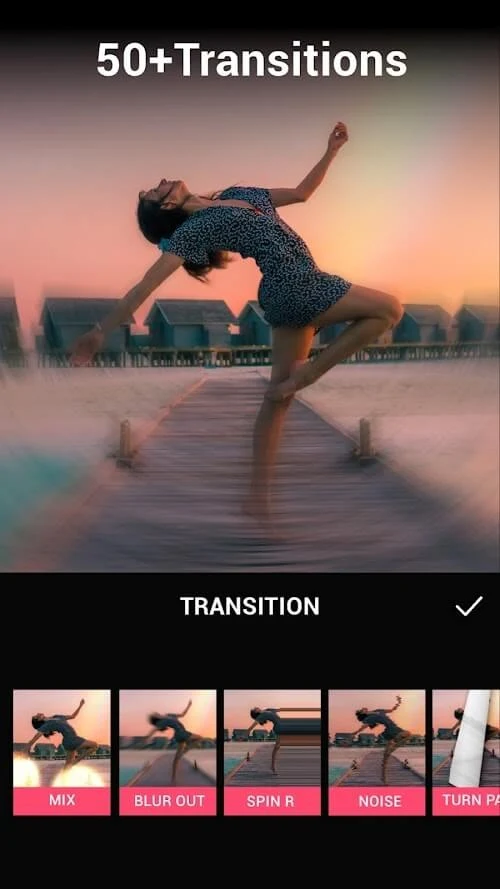
⭐ Add transitions and control timing. Transition effects such as crossfades and linear wipes can connect clips, while video speed controls support slow-motion or fast-motion edits. Audio speed can also be adjusted to suit the intended effect.
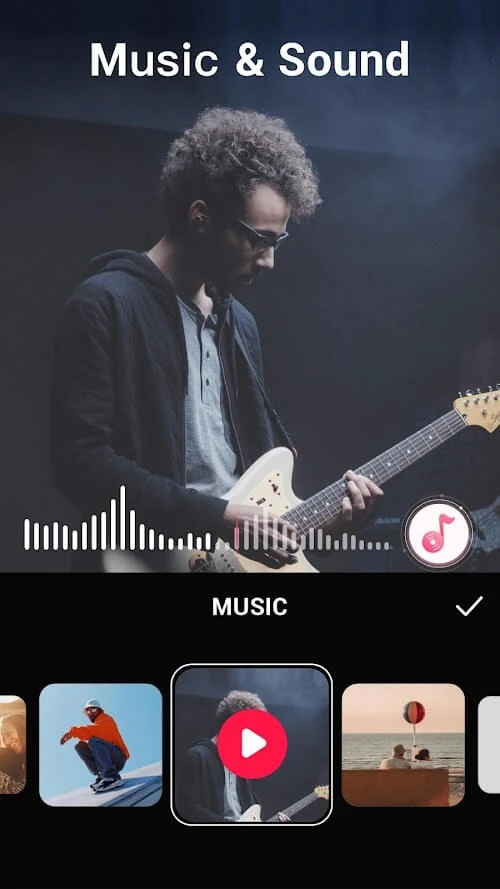
⭐ Work with speech, music, and other audio. The app can generate subtitles from speech and extract music from a video for later use as source material. Users can also add music or sound effects from the app’s audio library.
⭐ Add text and export a finished clip. Text can be styled with different typefaces and variations, and the source says text can be animated. Export options include MP4 and 720p or 1080p output.
Using the App
The described workflow starts by importing a video, then making edits such as trimming, splitting, or combining clips. Users can build up the project with layers, visual effects, transitions, text, and audio, adjusting speed where needed. AI-assisted background removal, quality enhancement, and speech-to-subtitle generation offer additional ways to alter or prepare footage. Once the edit is ready, users can choose an MP4 export, with 720p and 1080p options also listed. The source does not specify detailed device requirements, export-time estimates, or whether every tool works offline, so those details may depend on the app version and setup.
Why It May Appeal
✅ The combination of timeline editing, layered composition, visual styling, and audio tools gives users several parts of a video project to work on within the same app.
✅ Export choices are useful for matching different viewing needs: the source lists MP4 as well as 720p and 1080p output, including for viewing on larger screens.
✅ The provided user reviews describe the editing controls as approachable and mention uses such as vlogs, gaming videos, and performance edits. These are individual experiences rather than a guarantee of how the app will work for every user.
Things to Consider
❎ Some supplied user reviews mention advertisements in the free version, and one reviewer says they would like more fonts. These are user-reported observations, not a complete account of current pricing or available typefaces.
❎ One review says some filters and animations could use modification. Since creative preferences vary, it may be worth checking the available effects and text styles against the look you want before building a larger project.