
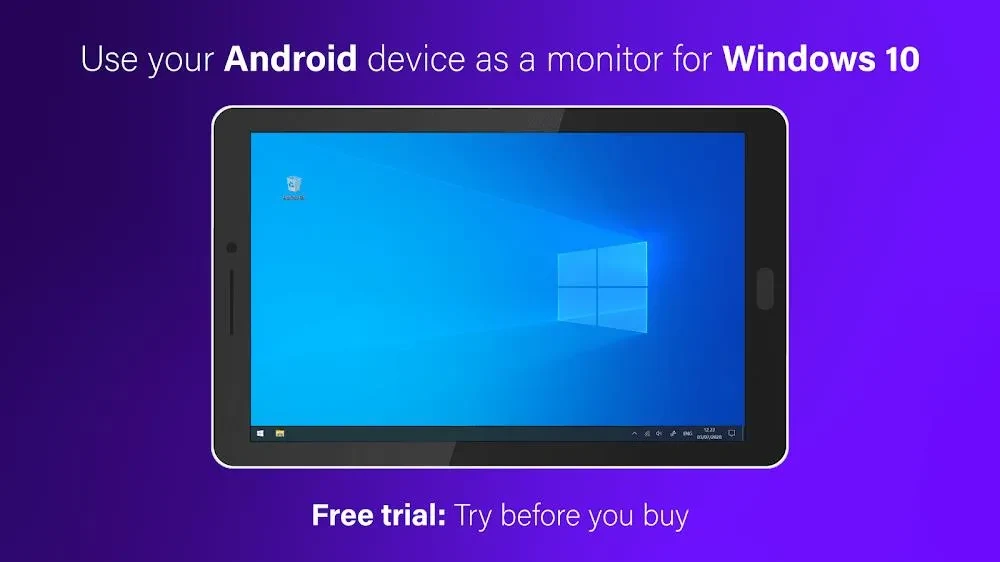
SuperDisplay is a practical application that converts your mobile device into a functional second screen for your computer, helping you expand your workspace without needing a bulky external monitor. By leveraging your existing hardware, the utility allows you to run computer content directly on your tablet or phone with a high refresh rate of 60 frames per second. This smooth performance ensures that whether you are drafting homework, organizing windows, or creating detailed digital art, the extended display remains responsive and free from frustrating lag or stuttering.
Portable USB Display Setup
Connecting your devices is straightforward and relies on a simple three-step procedure designed to get you working quickly. First, you download and install the SuperDisplay application on the Android device you intend to use as your secondary monitor. Next, you install the matching driver onto your Windows 10 computer. Finally, you link the two devices using a standard USB cable. Once connected, a notification confirms that everything is operational, allowing you to view and interact with your computer desktop on your tablet right away.
Pressure-Sensitive Stylus Integration
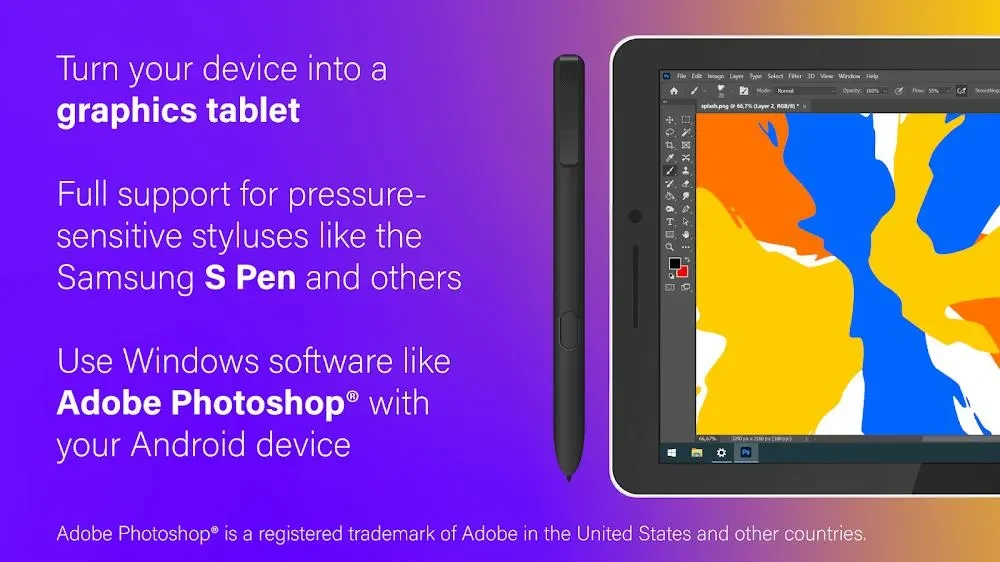
For digital artists and creators, the application supports pressure-sensitive styluses such as the Samsung S Pen. This capability lets you repurpose your Android tablet into a dedicated drawing tablet for programs like Adobe Photoshop. The precision provided by pressure sensitivity overcomes the limitations of small mobile screens, giving you accurate control when sketching, drawing, or executing detailed creative work.
Customizable Display Settings
The software includes configuration tools that let you tailor the extended screen environment to your specific preferences. Users can adjust parameters such as screen resolution and display orientation to achieve the ideal layout for their Windows 10 PC. Furthermore, you can save your preferred display configurations, making it easy to switch between different layouts depending on your current project or workspace requirements.
Multi-Device Support and Accessibility
Productivity can be scaled further by connecting multiple Android smartphones to a single Windows 10 computer, allowing you to utilize all connected phone screens simultaneously to facilitate collaboration and multitasking. Supported by a user-friendly configuration wizard, the system ensures that setting up various devices does not require advanced technical expertise, enabling a quick start experience for everyday users.