

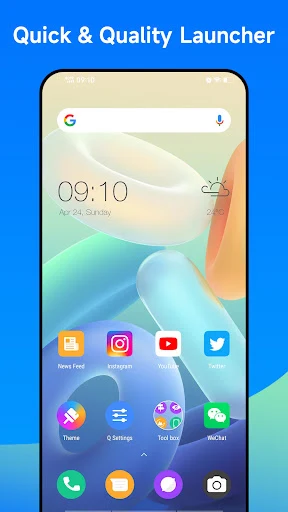
Q Launcher helps you refresh an Android home screen without changing the phone’s operating system. You can choose a theme or wallpaper, adjust how icons look, and place useful widgets where they are easy to reach. The app also combines visual changes with navigation controls, so a redesigned screen can still serve everyday tasks. Search helps you find wallpapers by keyword, while gesture settings and an app drawer offer other ways to reach what you need. Its Android 12-inspired appearance is a launcher style, not an upgrade to Android 12.
Find a look for your home screen
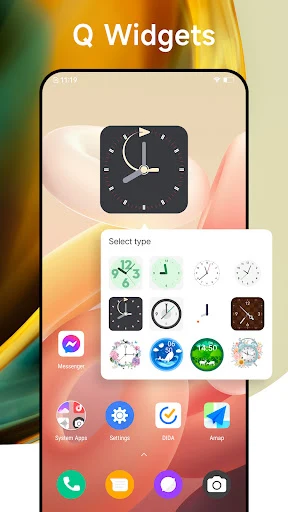
The app’s theme collection includes more than 2,000 options, alongside icon packs and online wallpapers covering different styles. You can search for a wallpaper using keywords and apply a selection to your device. Q Launcher also includes widgets, giving you another way to shape the home screen beyond its background and icons. If you find a wallpaper you like, the app supports sharing it with friends. The source describes additions to its wallpaper and widget collection, though it does not give a schedule for new content.
Adjust icons and keep apps organized
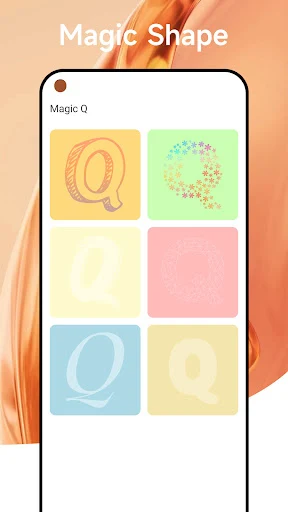
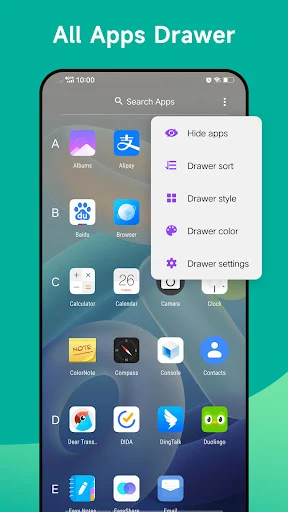
Q Launcher provides controls for changing app icons, including their names, sizes, and colors. These options let you make icons fit a chosen theme or make particular apps easier to spot. Its app drawer can arrange applications in different styles, so the visual changes do not have to determine how you browse your installed apps. You can also mark apps as favorites. Once you have arranged the desktop, a lock option helps prevent changes to that layout, which may be useful on a phone shared with children.
Use gestures and screen shortcuts
Gesture settings include double-tap, two-finger swipe, swipe up, and swipe down actions. You can associate gestures with actions to reach tasks without navigating through as many on-screen controls. The launcher also places frequently used widgets and tools on the home screen. Its listed tools include a flashlight, data cleaner, memory-management page, battery saver, and storage controls. Together, these shortcuts and gestures offer two approaches to common tasks: keep a control visible when you use it often, or assign an action to a gesture when you prefer a less crowded screen.
See notifications within a simple layout
Missed-call and message notices appear in the launcher’s notification bar. The interface is described as clean and minimally colored, putting emphasis on a straightforward arrangement rather than a busy design. That may appeal if you want to change the appearance of an older phone while keeping apps, notices, and basic tools close at hand. Q Launcher can imitate aspects of Android 12’s look and offer launcher functions, but applying it does not install a new Android version or change the phone’s underlying system.