
Overview
Polaris Office turns an Android device into a practical workspace for handling documents when a computer is not available. The app can import popular file formats, let you edit content directly on a phone or tablet, and save files in other formats or send them to other people. It recognizes more than 18 common languages and supports access across different devices through user accounts, helping you continue work from where you left off. Cloud storage options, document links, PDF form tools, handwriting input, and media insertion make it suitable for everyday writing, reviewing, note-taking, and document exchange. The app is described as running on devices using Android Marshmallow 6.0 or later.
Its focus is broad document handling rather than a single file type. Whether you are opening an existing file, making changes during travel, completing a form, or discussing revisions with colleagues, the available tools are gathered in one mobile office application.
What You Can Do
⭐ Open and import common file formats directly on an Android device. This is useful when a document arrives by email, is stored on the phone, or needs attention away from a desktop, because the app is designed to access popular files without requiring a separate conversion step before opening them.
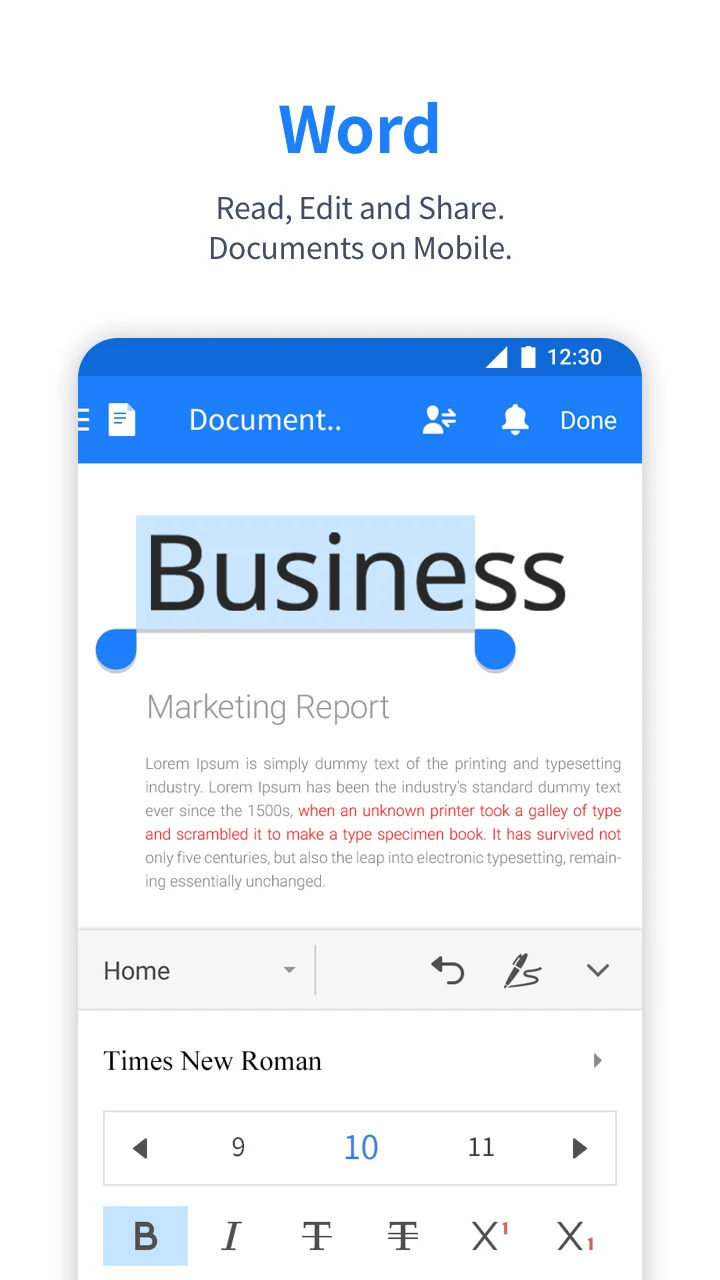
⭐ Edit documents on a phone or tablet and save the result in another format. After making changes, users can preserve the edited file in a suitable format or send it directly to another person, supporting quick revisions when time or equipment is limited.
⭐ Work with text in more than 18 common languages. The language recognition and input support can make it easier to create or check multilingual content, especially when a document needs to be reviewed on a mobile screen.
⭐ Continue work across different devices by signing in to an account. Documents can be synchronized so that files remain available when switching between a smartphone, tablet, or desktop, allowing a task to continue without depending on just one device.
⭐ Share a document through a link for collaborative review. Team members can access a shared document remotely, exchange comments, and discuss revisions around a unified file instead of passing separate copies back and forth.
⭐ Complete supported PDF forms from the app. When a form is already available, users can enter the requested information and transmit the completed document, which is useful for handling paperwork without printing it first.
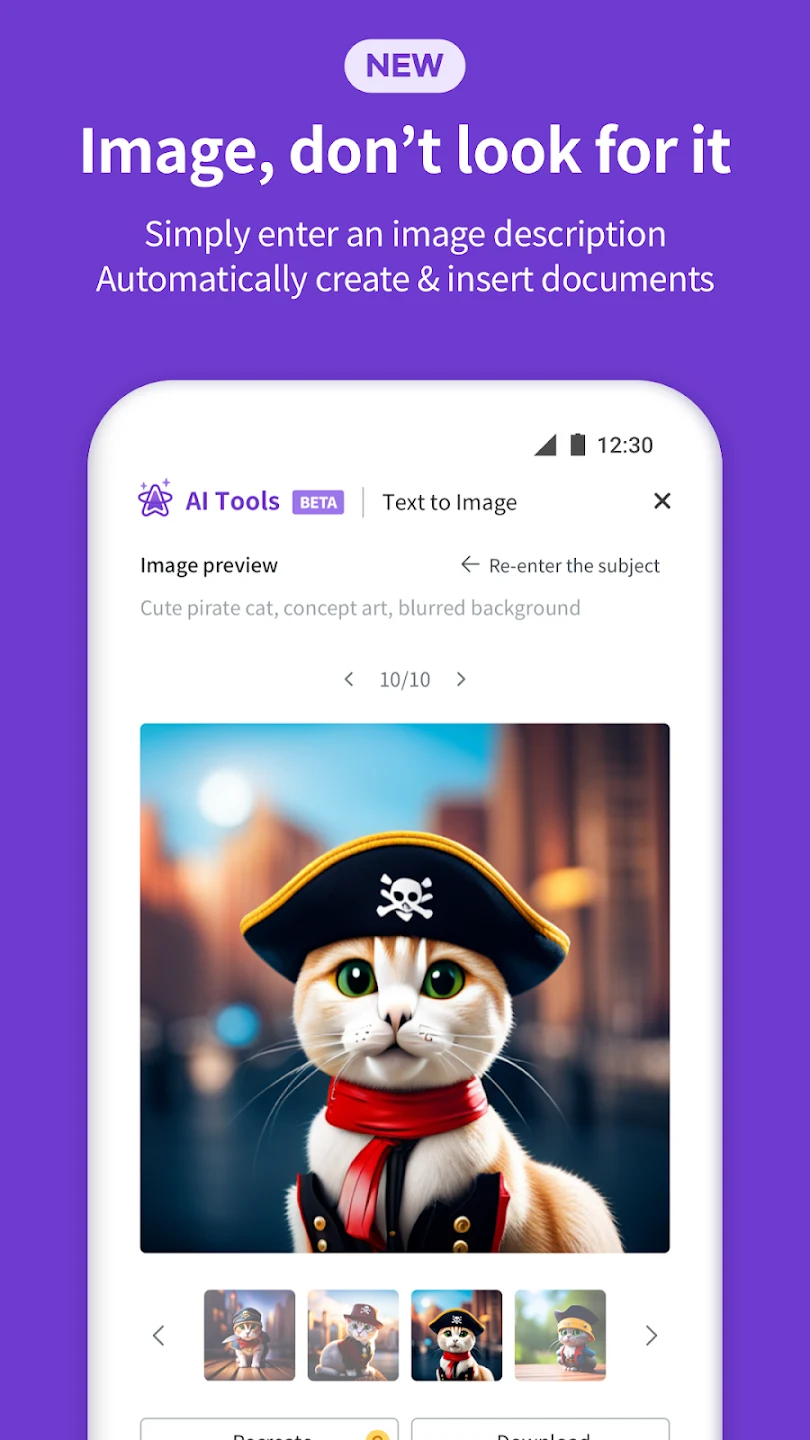
⭐ Add handwriting, images, or video clips to documents and presentations. Handwriting input supports writing directly on the screen for notes or brainstorming, while media from an Android device can add visual material to suitable files.
Using the App
A typical workflow begins by importing or opening a document from the device or an available cloud location. After editing, the file can be saved in another format, shared directly, or made available through a document link. Account access supports movement between devices, while cloud integration gives users a choice of where to keep files for later editing.
The interface is described as lightweight and centered on editing tools, which may help keep the main document workflow straightforward on a smaller screen. Users can also work with handwriting and insert local images or video clips when a document requires more than typed text. These options make the app useful for both routine office files and less formal notes or idea sketches.
Document recovery settings are available on Android through the app's three-dot menu, Settings, and Documents section. The supplied information states that users can turn recovery documents on or off and set a generation interval. However, automatic recovery is not supported when a document is opened in an external cloud. If the app is forcibly terminated while the relevant function is active, a recovery prompt may appear when Polaris Office is opened again.
Why It May Appeal
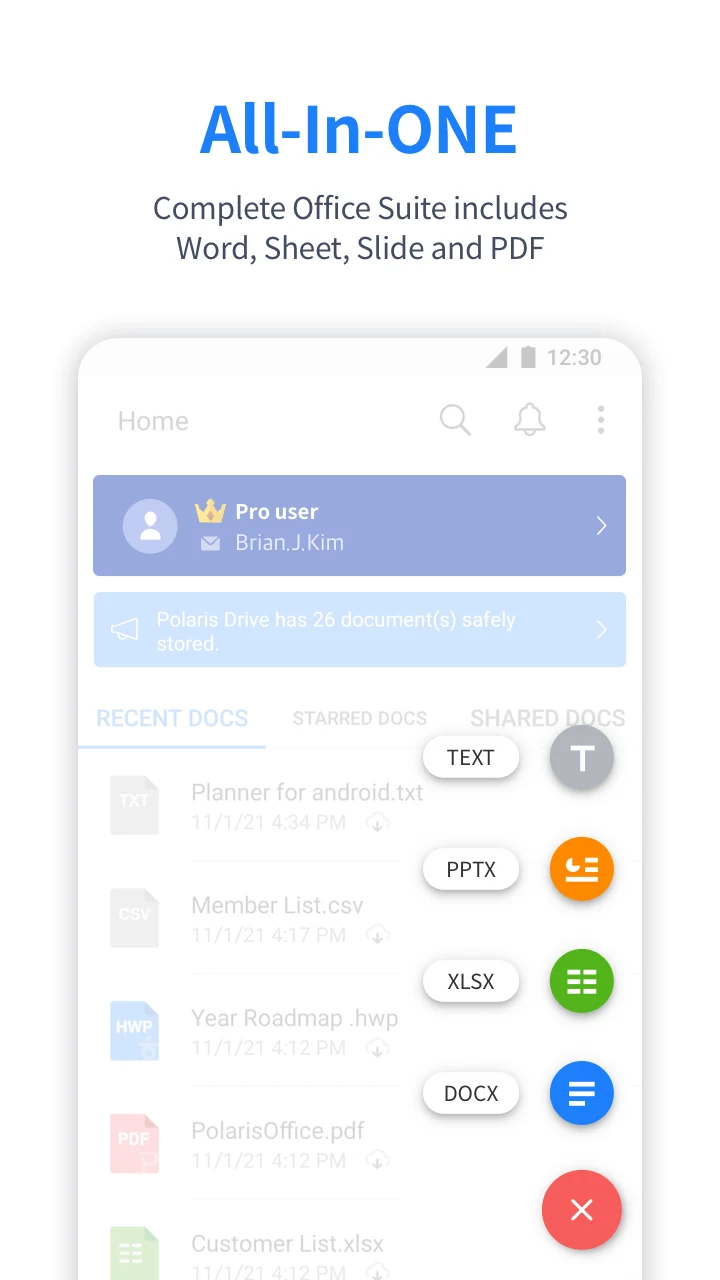
✅ It brings several common office tasks into one Android application, including opening, editing, converting, sharing, and completing PDF forms.
✅ Cross-device synchronization can help users keep working when they move between a desktop, tablet, and smartphone, provided they use the associated account and supported storage workflow.
✅ Link-based document sharing gives teams a way to discuss revisions around one shared document rather than relying only on separate attachments.
✅ Handwriting input and multimedia insertion add options for notes, brainstorming, presentations, and documents that need visual content.
✅ The stated support for Android Marshmallow 6.0 and later makes the app relevant to devices that meet that operating-system requirement.
Things to Consider
❎ Automatic recovery has a documented limitation: it does not work when a document is opened in an external cloud. Users working from that type of location should be aware that recovery behavior may differ from files opened through the app's supported workflow.
❎ The app requires access to external storage for tasks such as opening, editing, and saving documents. Users should review the permission settings on their device and allow only the access needed for the functions they intend to use.
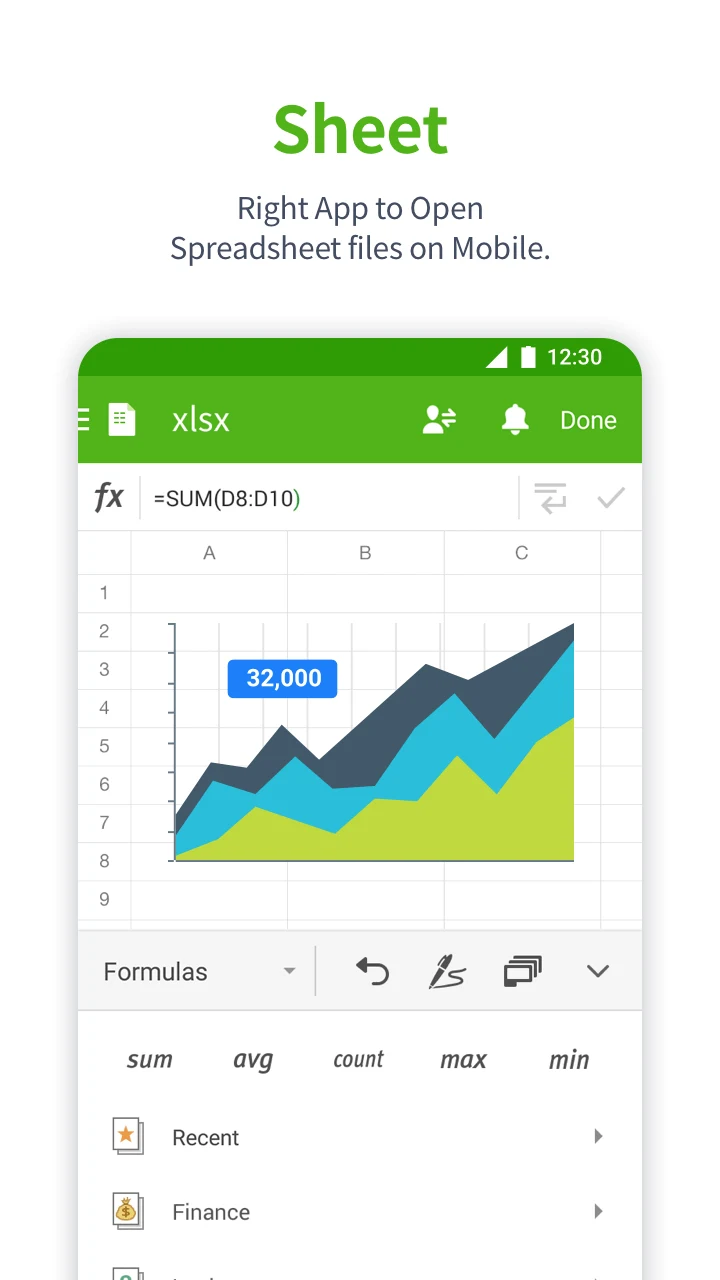
❎ User feedback has mentioned that some advanced spreadsheet functions could be expanded, including formula support and data validation. Other feedback described editing or reopening-position problems, although one later comment said those reported issues had been fixed. These comments are individual experiences rather than a guarantee that every device will behave the same way.
Market Feedback
Available user comments describe Polaris Office as lightweight and convenient for everyday document handling, with positive mentions of its interface, broad format support, and selection of basic fonts. Feedback is not entirely uniform: some users have requested more advanced spreadsheet tools, while another comment concerned subscription management and difficulty finding a cancellation contact. These observations reflect the supplied reviews and should be considered alongside the app's documented features rather than treated as universal results.
Account and Team Sharing
For team-oriented use, the supplied instructions describe inviting members through the Polaris Office website. An administrator signs in with the master account, opens the Admin Console, selects Team Member, and chooses Invite. A Team Folder can also be created from the Admin Console, with sharing set for all team members or selected members. Once created, members can find the folder in My Polaris Drive. This workflow is separate from simply sending an individual document link and is intended for organized team access.
FAQ
Questions about account access, cloud recovery, and team collaboration may depend on whether the document is being handled in the Android app or through the Polaris Office website. The following answers are limited to the documented information supplied for this app.