
Overview
Open Camera is an Android photography app for users who want more control than their device’s standard camera interface may provide. It combines manual and automatic shooting tools with guides, monitoring aids, video settings, and remote or hands-free triggers. Depending on the camera capabilities exposed by the phone, you can adjust ISO, shutter speed, white balance, focus, and exposure, or use features such as HDR, RAW capture, panorama, and interval shooting. The interface can also be adapted with orientation locks, volume-key actions, and configurable controls, making the app suitable for everyday photos, self-portraits, landscapes, product shots, and more carefully planned camera work.
What You Can Do
⭐ Adjust exposure and focus manually when the default camera does not provide enough control. Open Camera supports ISO changes, shutter speed adjustments, exposure compensation or lock, manual focus, and white balance settings. A focus-assist overlay can help you judge manual focus more accurately, while Camera2-based controls may expose additional capabilities on compatible phones.
⭐ Capture RAW photographs in DNG format for more flexible editing later. RAW files can preserve information for users who want to make their own adjustments after taking a picture, although access to this function depends on the device and its camera implementation.
⭐ Use HDR, exposure bracketing, and other advanced capture modes for demanding scenes. HDR includes auto alignment and ghost removal to help with scenes containing both bright and dark areas. Exposure bracketing creates a sequence of images with different exposures, which can be useful when selecting a preferred frame or combining images in later editing work.
⭐ Create sequences with interval shooting, auto repeat, or a timer. Interval shooting can produce regularly spaced photographs for time-lapse projects, while a timer with an optional voice countdown can help with group photos and self-videos. A noise-activated shutter can provide another hands-free way to trigger the camera.
⭐ Record video with configurable settings where supported by the device. The source describes adjustable frame rates and resolution, optional audio control, slow-motion recording on compatible hardware, and a log profile intended to preserve more highlight and shadow information. These options give video users more room to choose how footage is captured.
⭐ Compose and monitor images with on-screen guides. Rule-of-thirds and golden-ratio grids, crop guides, an on-screen histogram, zebra stripes, focus peaking, and auto-level tools can assist with framing, exposure checking, focus, and keeping horizons straight. Panorama mode is available for both rear and front cameras, while focus bracketing can create a sequence for macro or product photography that may later be combined into a deeper-focus image.
Using the App
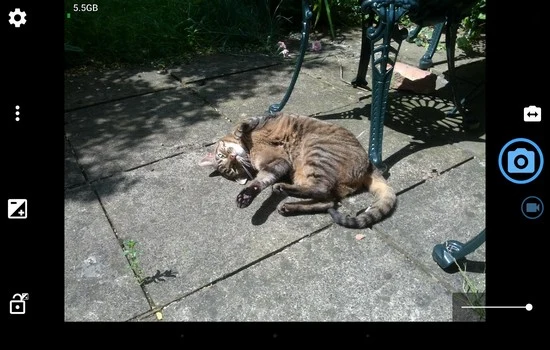
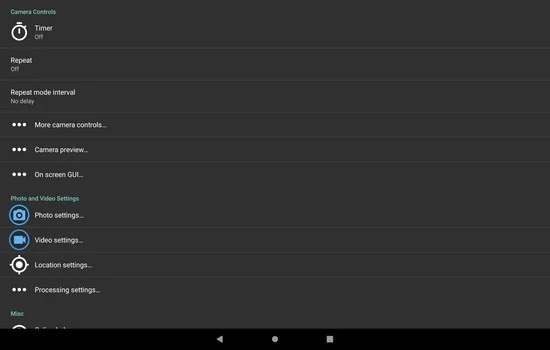
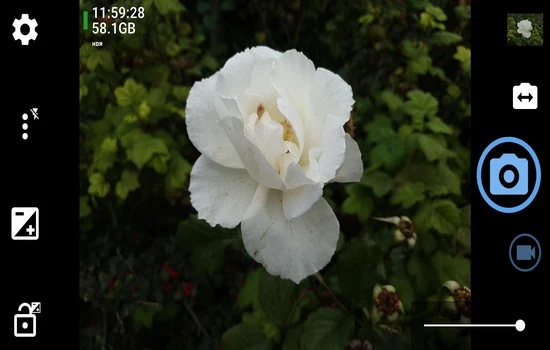
Open Camera is designed around adjustable on-screen controls rather than a fixed layout. You can configure volume keys for camera actions, change accessible settings toggles, and use orientation locks when shooting in portrait, landscape, or less conventional positions. These controls can make it easier to operate the camera without repeatedly opening a settings screen, while an upside-down preview is intended for attachable lenses and rigs that require the phone to be mounted in an inverted position.
For a planned photograph, you can select a capture mode, set the timer or interval, and use grids or crop guides to arrange the subject. The histogram, zebra stripes, and focus peaking provide feedback while composing, helping you inspect exposure, clipped highlights, and focus before pressing the shutter. Auto-level can assist with straight horizons, although it may rotate or crop pictures if enabled unintentionally. It can be turned off from the popup menu.
Hands-free shooting is supported in several ways. A voice command or clap can trigger the camera, a voice countdown can accompany a timer, and Bluetooth LE remote support can allow tripod shooting without touching the phone. You can also use the interface or volume keys as alternative controls. These options are particularly relevant for group photographs, self-videos, repeated shots, and setups where touching the phone could move the frame.
Camera2 capabilities affect how much of the app’s advanced control is available. On some devices, Camera2 can provide manual controls, RAW capture, and access to multiple cameras. Extra cameras may appear through zoom, with zooming below 1x potentially selecting an ultra-wide camera and higher zoom potentially selecting a telephoto camera. Some phones offer manual multi-camera switching instead. The exact behavior is controlled by the device’s Android camera API, so the same feature may not work identically on every phone.
Why It May Appeal
✅ The app brings exposure, focus, white balance, and capture-mode controls together in one camera workflow, which can be useful for photographers who want to make deliberate choices instead of relying entirely on automatic settings.
✅ Composition and monitoring aids can reduce guesswork before capture. Grids, crop guides, auto-level, focus peaking, zebra stripes, and the histogram address different parts of framing, focus, and exposure without requiring separate tools.
✅ The range of triggers supports both casual and carefully staged photography. Timers, voice or noise activation, interval shooting, and Bluetooth LE remote control provide alternatives when the phone cannot be operated directly at the moment of capture.
✅ The app covers still photography and video in the same interface. Users can work with HDR, panoramas, bracketing, macro-oriented focus sequences, RAW photographs, and configurable video recording rather than being limited to a basic shutter and automatic mode.
Things to Consider
❎ Advanced functions depend on the hardware and camera API of the Android device. Manual controls, Camera2 features, RAW, slow motion, log video, and access to additional cameras may not be available or may behave differently on every phone.
❎ Some devices do not expose extra cameras to third-party applications. Open Camera can use cameras made available through the Android camera API, but it cannot reliably access cameras that the device does not expose through that standard interface.
❎ Moving Open Camera to a new phone may require settings to be checked again. A backed-up save path may no longer be valid, and a Storage Access Framework location may need to be selected again to grant permission on the new device. The app includes a settings reset option that can help rule out problems caused by transferred settings.
❎ Shutter-sound control is also device-dependent. If the relevant Camera2 setting is available, the app may provide a way to disable the shutter sound in its additional camera controls. If the phone’s camera API reports that this is not supported, Open Camera cannot guarantee that the sound can be disabled.
Camera Access and Compatibility
The app’s behavior is closely connected to what the phone manufacturer makes available to third-party camera applications. Camera2 may expose multiple cameras through zoom or camera-switch controls, but some devices restrict those cameras or permit switching only when RAW capture is disabled. Other applications may appear to access camera IDs that are not officially exposed, but relying on such workarounds can produce unstable behavior. Open Camera instead works with the camera access provided through the Android API.
Storage behavior can also require attention after a device change. If photographs were previously saved to a custom location, that path may not transfer correctly to the new phone. Re-selecting the save location through the app’s settings can restore the necessary permission. If the configuration remains confusing, resetting the app’s settings returns it to its original state so that camera and storage options can be configured again.
Frequently Asked Questions
Open Camera is listed in the supplied app information as version 1.56. The available details do not establish a universal Android version requirement, and feature availability varies according to the phone’s camera hardware and Android camera API.