

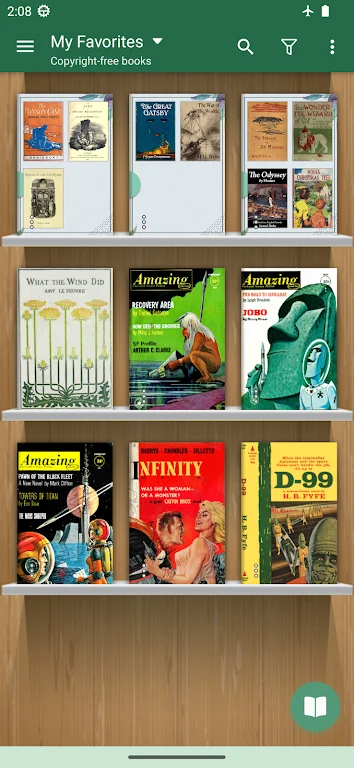
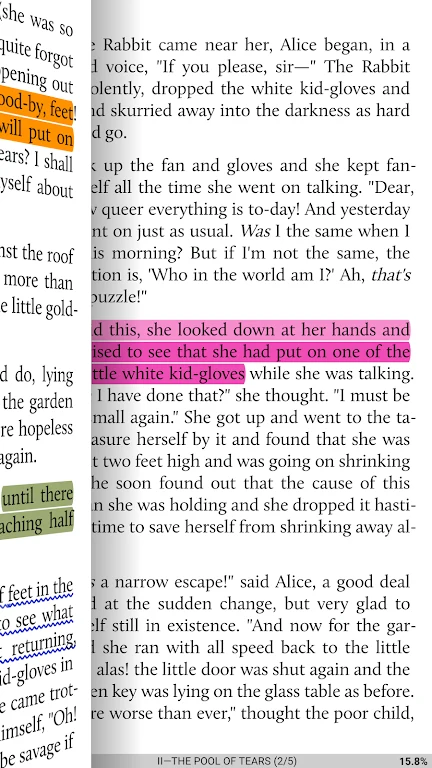
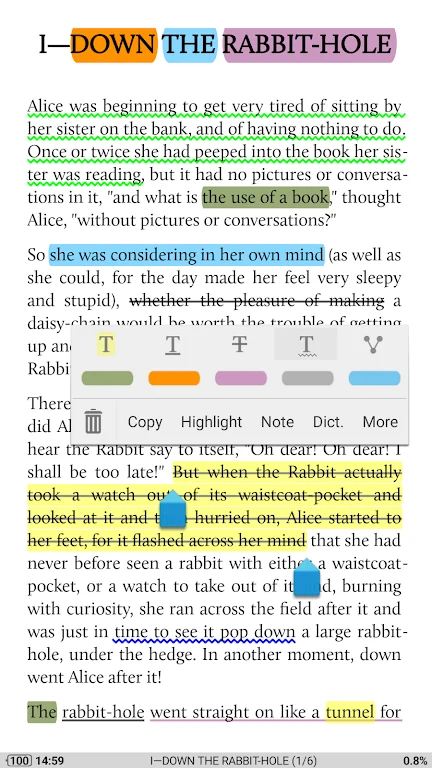
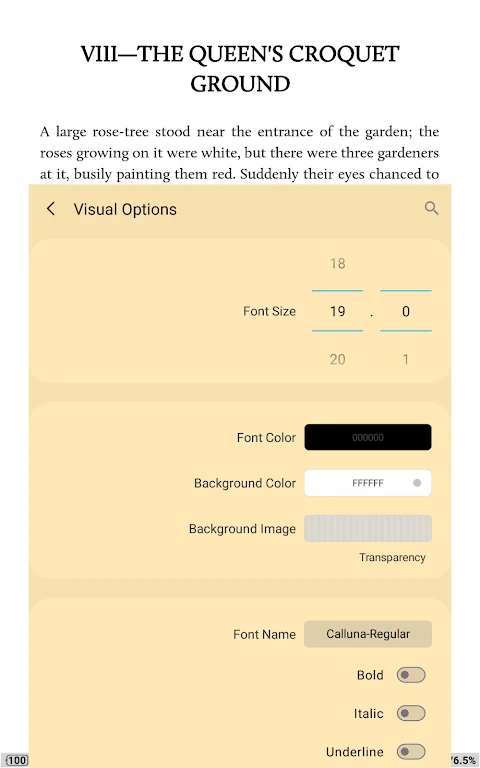
Moon+ Reader is an ebook reader for people who want to read books from online bookstores or open files stored locally. It supports formats including EPUB, PDF, DJVU, AZW3, and MOBI, and provides reading controls for adjusting how text and pages appear.
When choosing books from online or local sources
The app provides access to thousands of free ebooks from online electronic bookstores, as well as reading for locally stored books. Support for EPUB, PDF, DJVU, AZW3, and MOBI covers several ebook and document formats. Smooth scrolling is available while reading, so books from either source can be read within the app.
When adjusting text and page appearance
Reading settings include line spacing, font size, bold and italic styles, shadows, text justification, and color transparency. Readers can also choose visual themes, including a day and night mode, and adjust brightness. Page-turning animations and fade-in or fade-out edges are among the available appearance options. These settings allow the reading display to be tailored through the app rather than requiring one fixed presentation.
When managing reading positions
Moon+ Reader includes options to back up and sync reading positions across devices. This is useful when keeping track of where reading has reached on more than one device. The source describes synchronization specifically for reading positions; it does not specify that book files themselves are synced. Intelligent paragraph formatting and an eye-protection mode are also listed among the reading functions.