

Overview
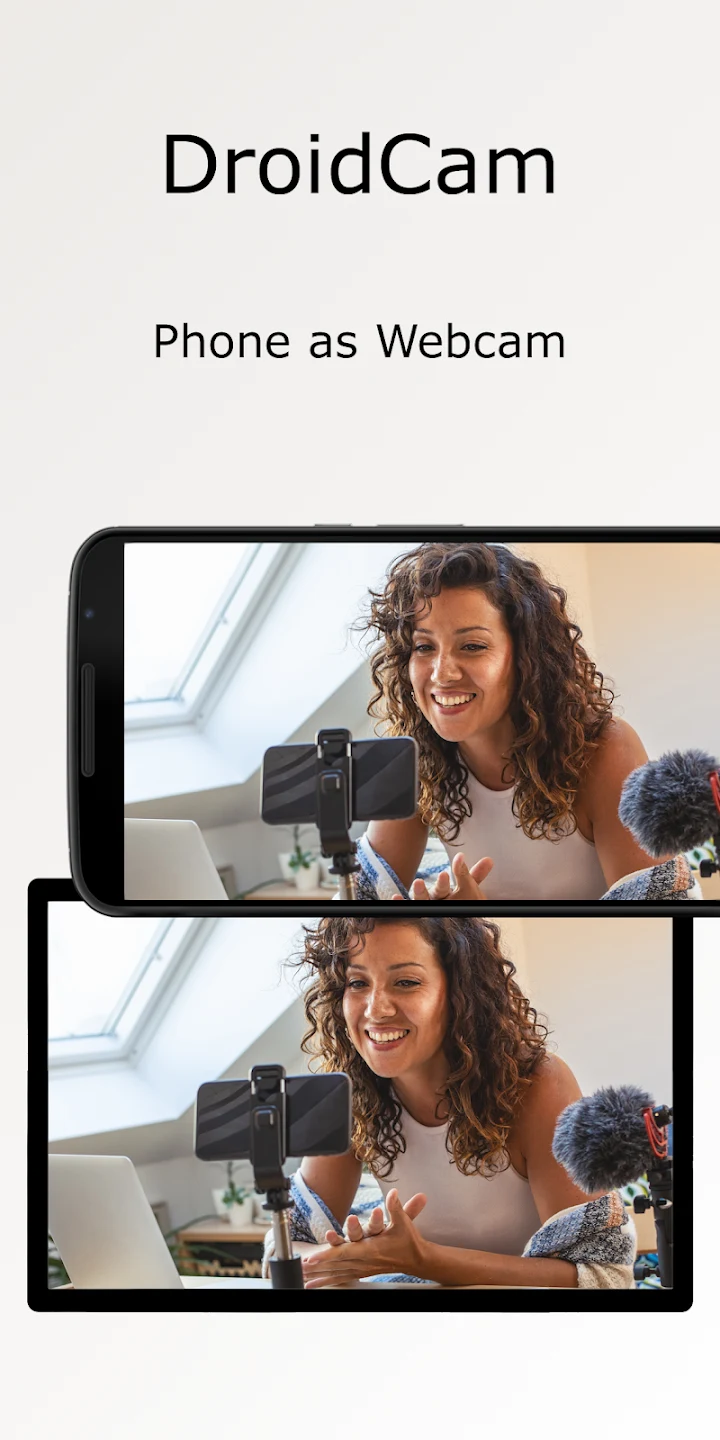
DroidCam OBS turns an Android phone into a camera source for OBS Studio on a computer, offering an alternative when a built-in or separate webcam is unavailable or unsuitable. Connect the phone over Wi-Fi or USB, then use the DroidCam OBS plugin on the computer to bring its camera feed into an OBS setup. The app is intended for streaming and recording, and can use the phone’s front or rear camera. Image quality, resolution, and frame rate depend partly on the device and connection. Standard-definition use is available free without a time limit; an optional Pro upgrade provides HD video without watermarks.
What You Can Do
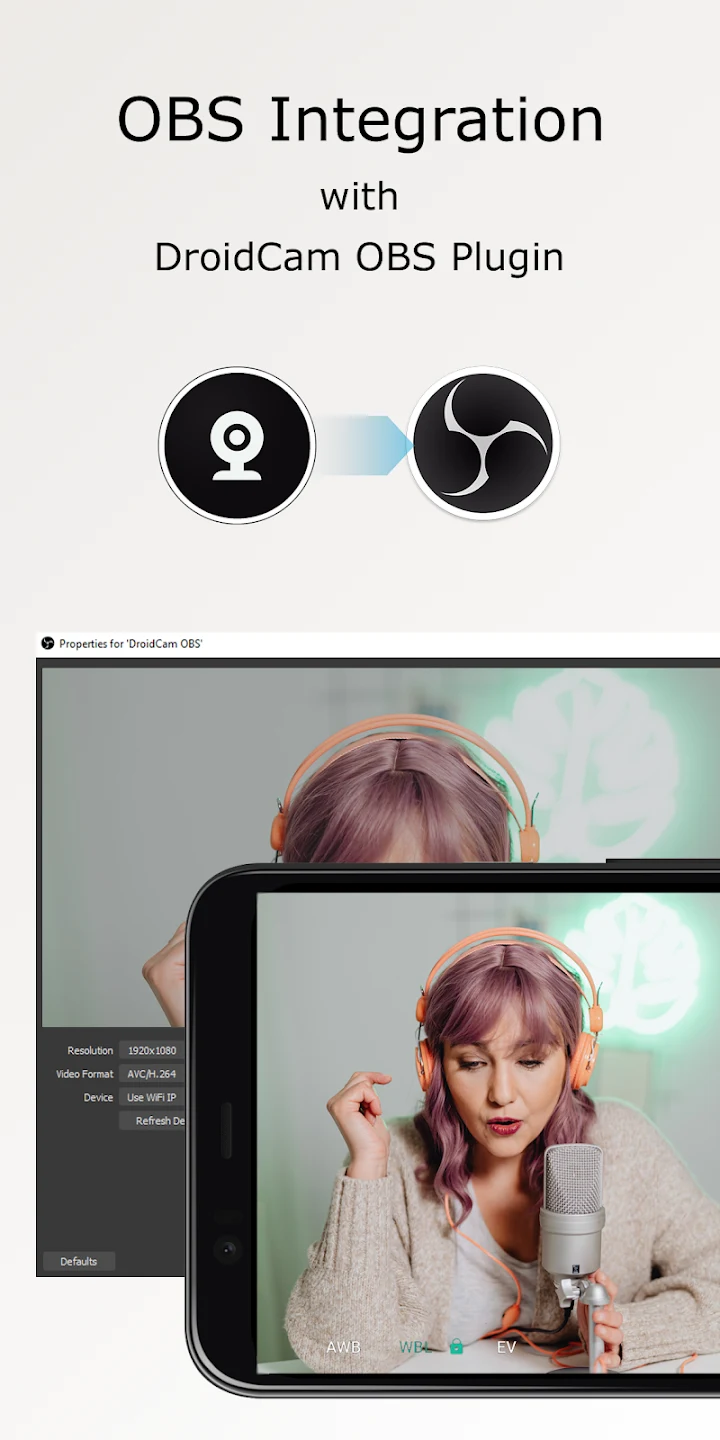
⭐ Use the phone as an OBS camera for live streams or video recordings. The DroidCam OBS plugin is available for Windows, Mac, and Linux computers, allowing the phone feed to be integrated into an OBS Studio workflow.
⭐ Choose Wi-Fi or USB to connect the phone and computer. Wi-Fi offers a wireless setup, while USB is another connection option; the source notes that USB may require additional configuration.
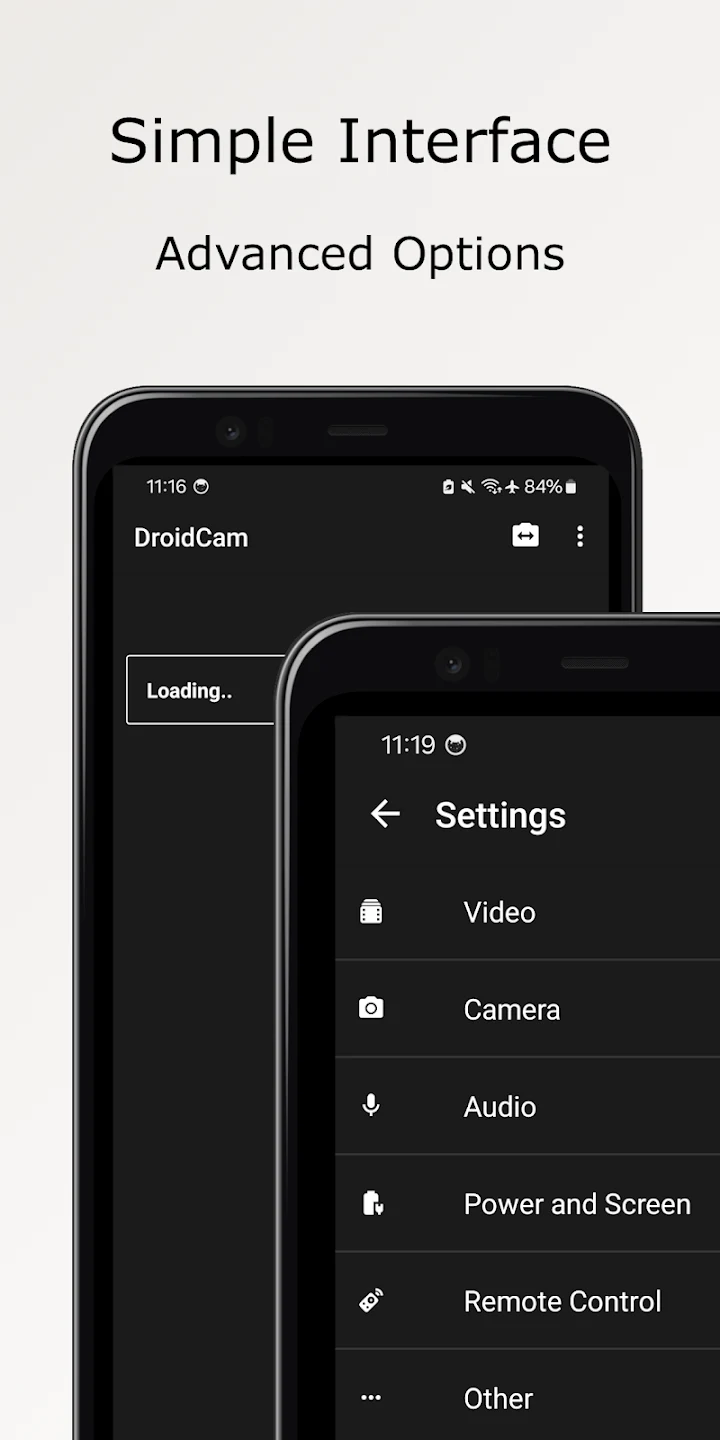
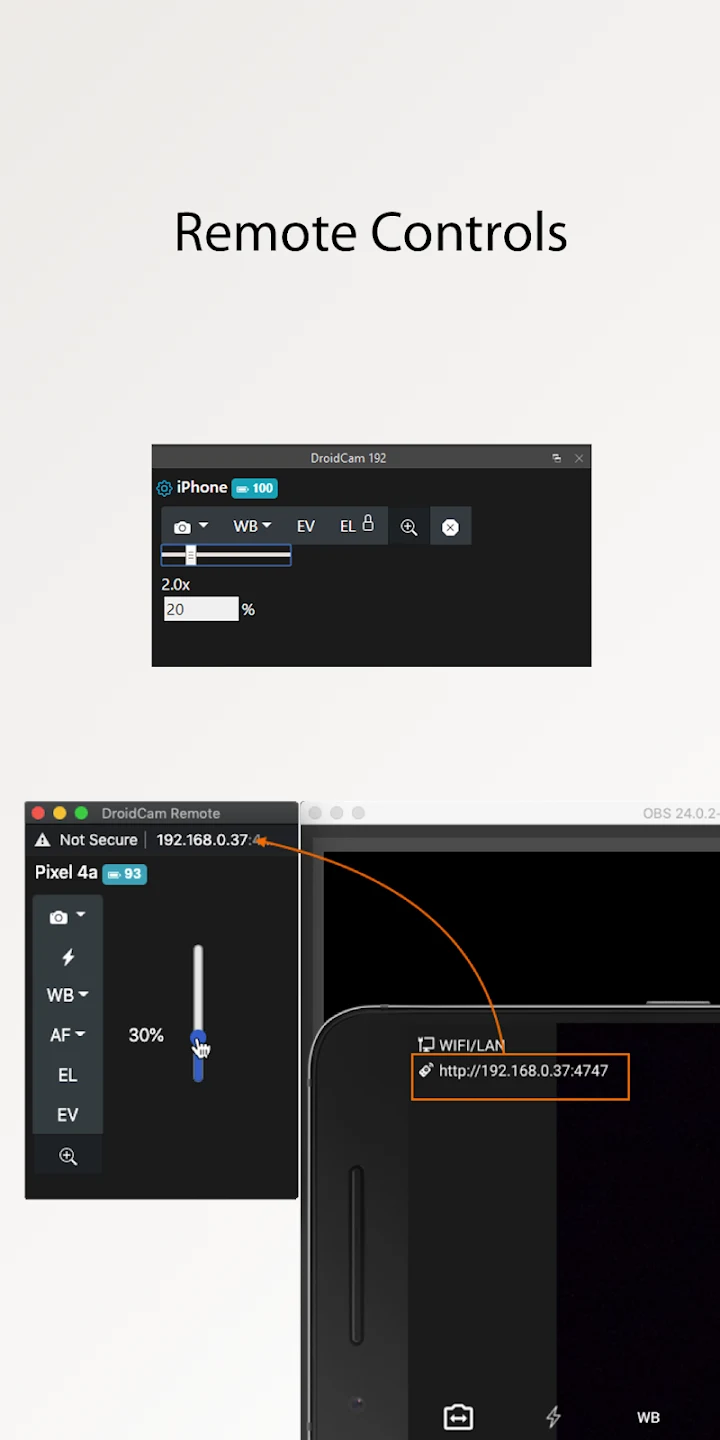
⭐ Adjust camera image settings such as exposure, white balance, and focus to suit the scene. The phone app also includes video-quality choices, including High and Very High settings.
⭐ Configure video frame rate through the phone’s Target FPS setting and the computer-side client settings. A 60 FPS setup requires changing the relevant settings on both sides, and the active AE FPS range is shown when video starts.
⭐ Use audio integration with the webcam feed for streaming and recording. Audio uses additional CPU, so the supplied guidance suggests leaving it off when it is not needed and using a regular microphone instead.
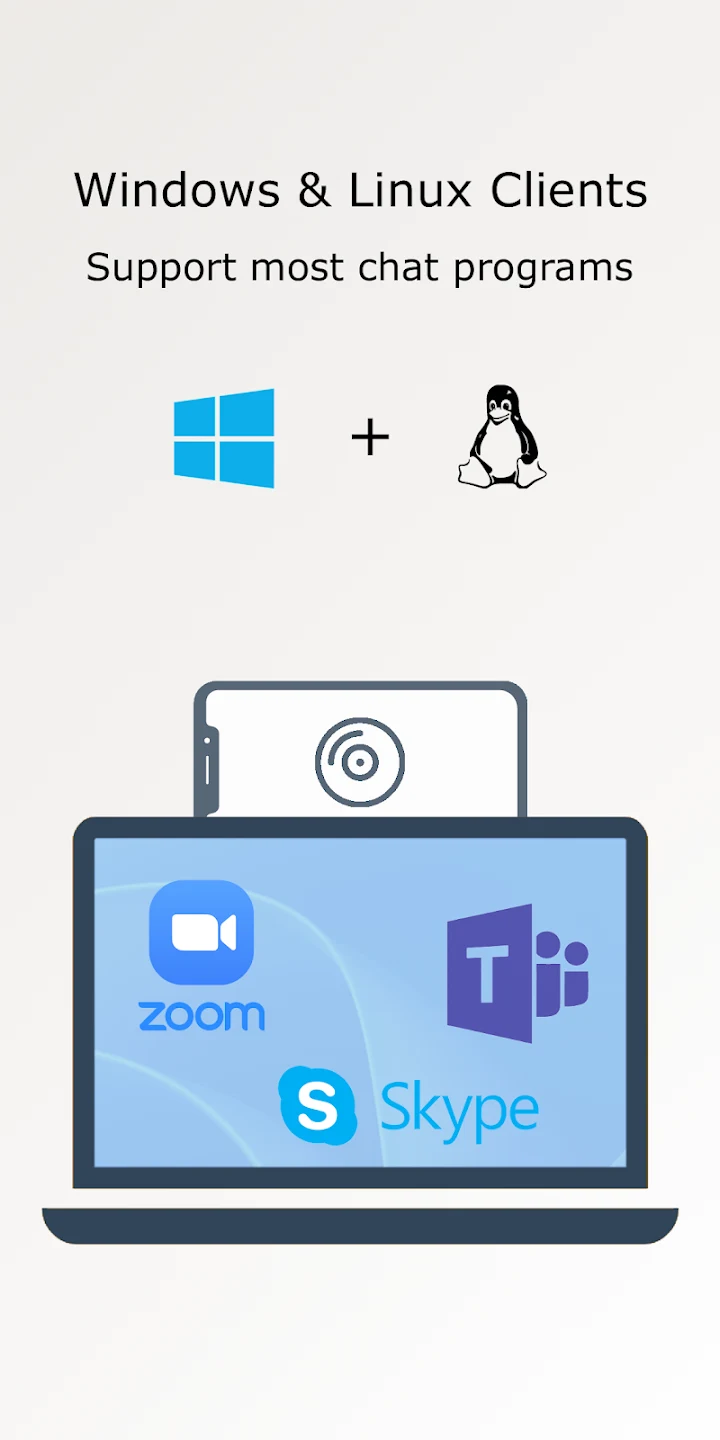
⭐ Connect the phone to compatible video-call applications through the DroidCam PC Client. The client is described as supporting Windows and Linux and working with programs such as Zoom, MS Teams, and Skype. This is a separate computer-side route from using the OBS plugin.
Using the App
Start the DroidCam app on the phone, then start either the computer client or the OBS plugin, depending on the workflow. The source advises using one of these computer components rather than starting both at once. For OBS, install the DroidCam OBS plugin on the computer; for supported video-call programs, use the PC Client. The phone can connect over local Wi-Fi or USB, with USB potentially needing extra setup.
If Wi-Fi discovery does not find the phone, the client’s device-list refresh control can be clicked three times to reveal a manual-add option. Enter the Wi-Fi IP address shown in the phone app. For a pixelated picture, the app’s Settings menu offers High or Very High video quality. On Android, Advanced Options can be enabled to set a custom bitrate when the Wi-Fi or USB connection is fast enough; that setting is intended for more experienced users.
To try 60 FPS, set Target FPS in the phone app under Camera settings, then change video FPS in the computer client’s File menu. The actual available rate may vary: some phones restrict camera functions used by other apps, and the source notes that many Samsung devices limit non-native apps to 30 FPS. Long sessions also use phone resources. The guidance recommends keeping the device charged and connected to power, dimming its screen, allowing heat to dissipate, and avoiding maximum video settings. It suggests 1280×720 resolution at 30 FPS as a way to retain HD video while reducing resource use.
Why It May Appeal
✅ It can make an existing Android phone useful as a computer camera, with both front- and rear-camera use described in the source. Wi-Fi can also let the phone be positioned away from the computer within the local wireless area.
✅ The OBS plugin supports Windows, Mac, and Linux, while the separate PC Client supports Windows and Linux. This gives users distinct routes for OBS production and compatible video-call software.
✅ Standard-definition use is described as free with no time restriction. The optional Pro upgrade is specifically associated with HD video without watermarks, so users can choose whether that added output quality fits their needs.
Things to Consider
❎ USB connections may require additional configuration, and Wi-Fi discovery can fail; manual device entry is available as a troubleshooting step. Connection quality can also affect the resulting video.
❎ Phone hardware can limit available camera features, resolutions, or frame rates, so not every Android device will provide the same output. Long video transfers put extra strain on the phone, and enabling audio or demanding video settings can use additional resources.
❎ The source describes free use at standard definition, while HD without watermarks requires the optional Pro upgrade. It does not specify the upgrade price.