

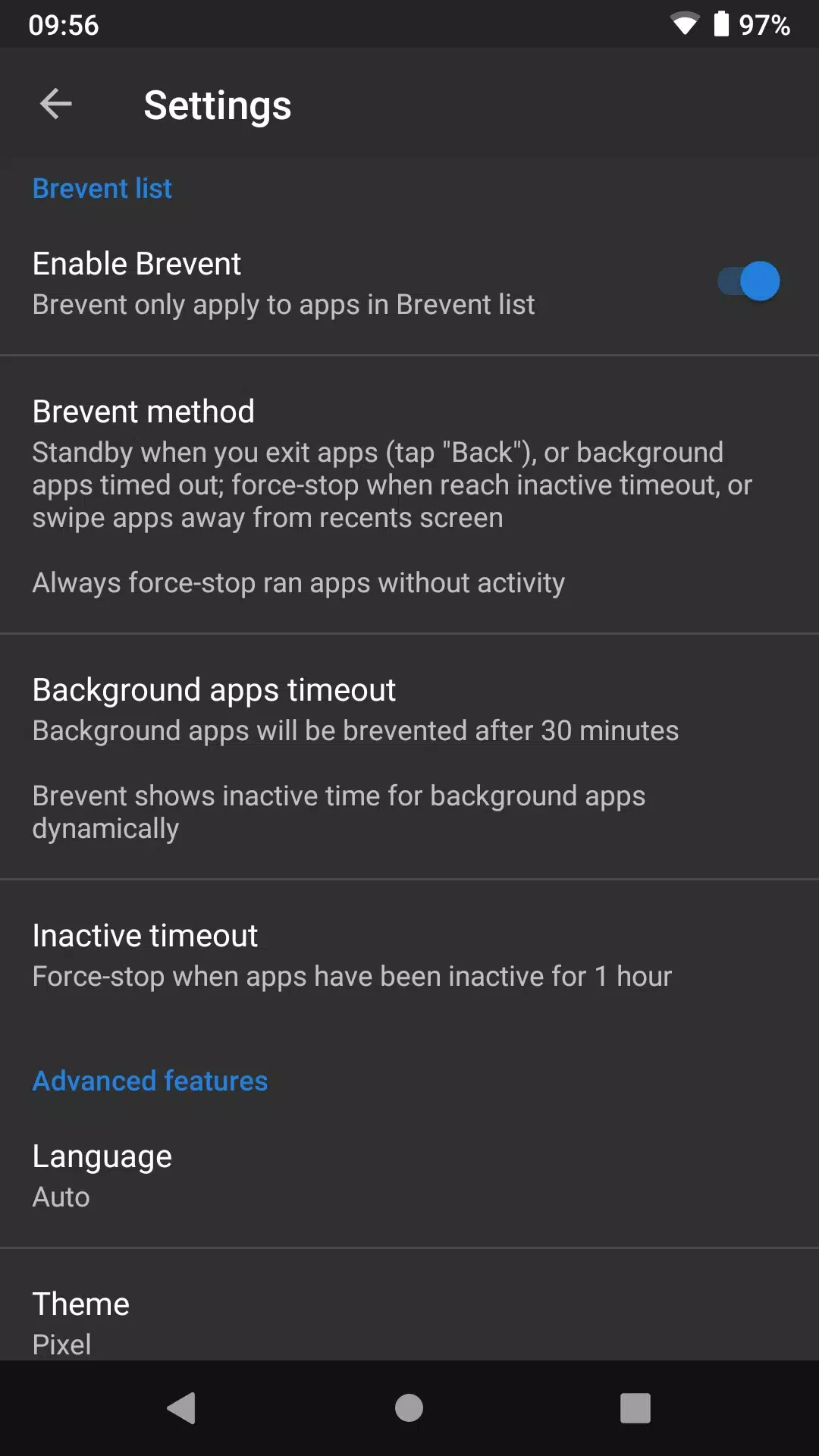
Brevent is a practical Android tool for controlling background activity in selected applications. It addresses the problem of apps continuing to run, wake the device, or consume resources after you have stopped using them. Brevent places listed apps into standby and can force-stop them when they time out, are removed from the recent-apps screen, or run without visible activity. Its clearest benefit is targeted control: you decide which apps it manages, while other apps remain unchanged. It works without root access, but initial activation requires USB or wireless debugging through Android developer options.
How does Brevent control background processes?
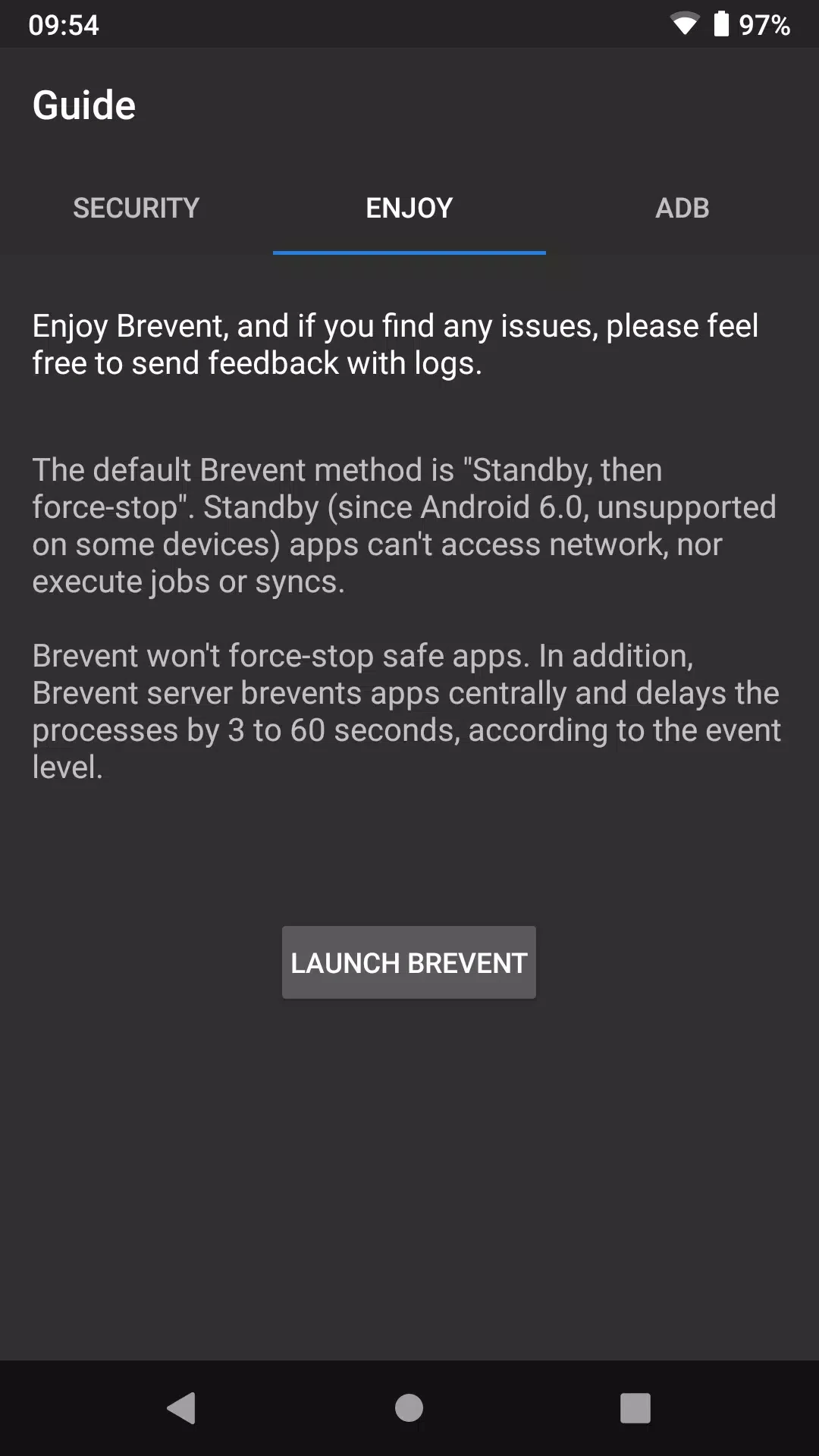
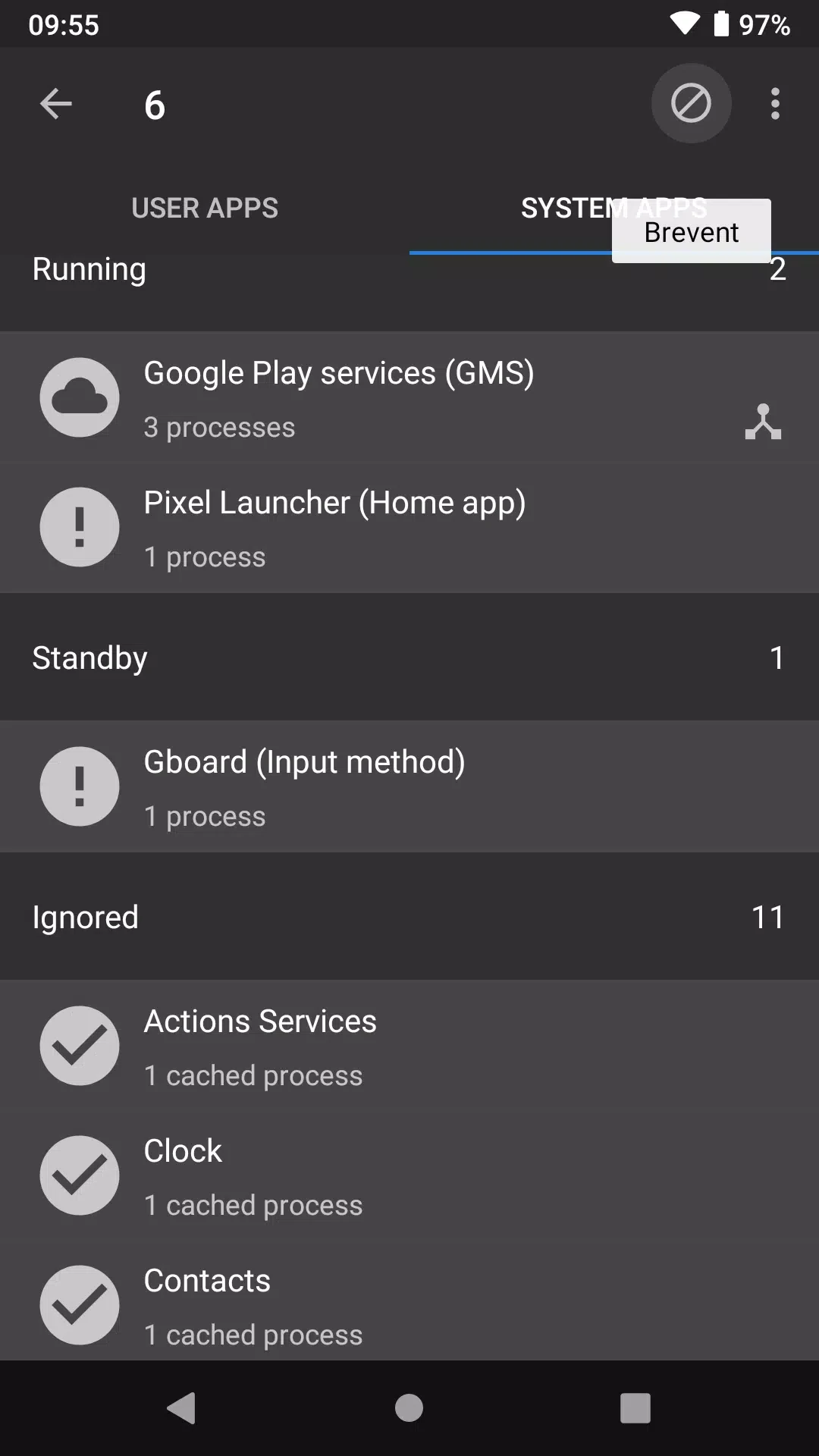
Brevent uses Android app standby together with force-stop logic. After you leave an app, it can move that app into standby and stop it when the relevant conditions are met, such as a timeout, removal from recents, or continued operation without visible activity. This approach is intended to reduce unnecessary wakeups while avoiding broad restrictions that could interfere with normal use.
The controls apply only to applications that you add to the Brevent list. Apps outside that list are not changed, so you can begin with a small group and revise the selection whenever your usage changes.
Can selected apps still deliver notifications?
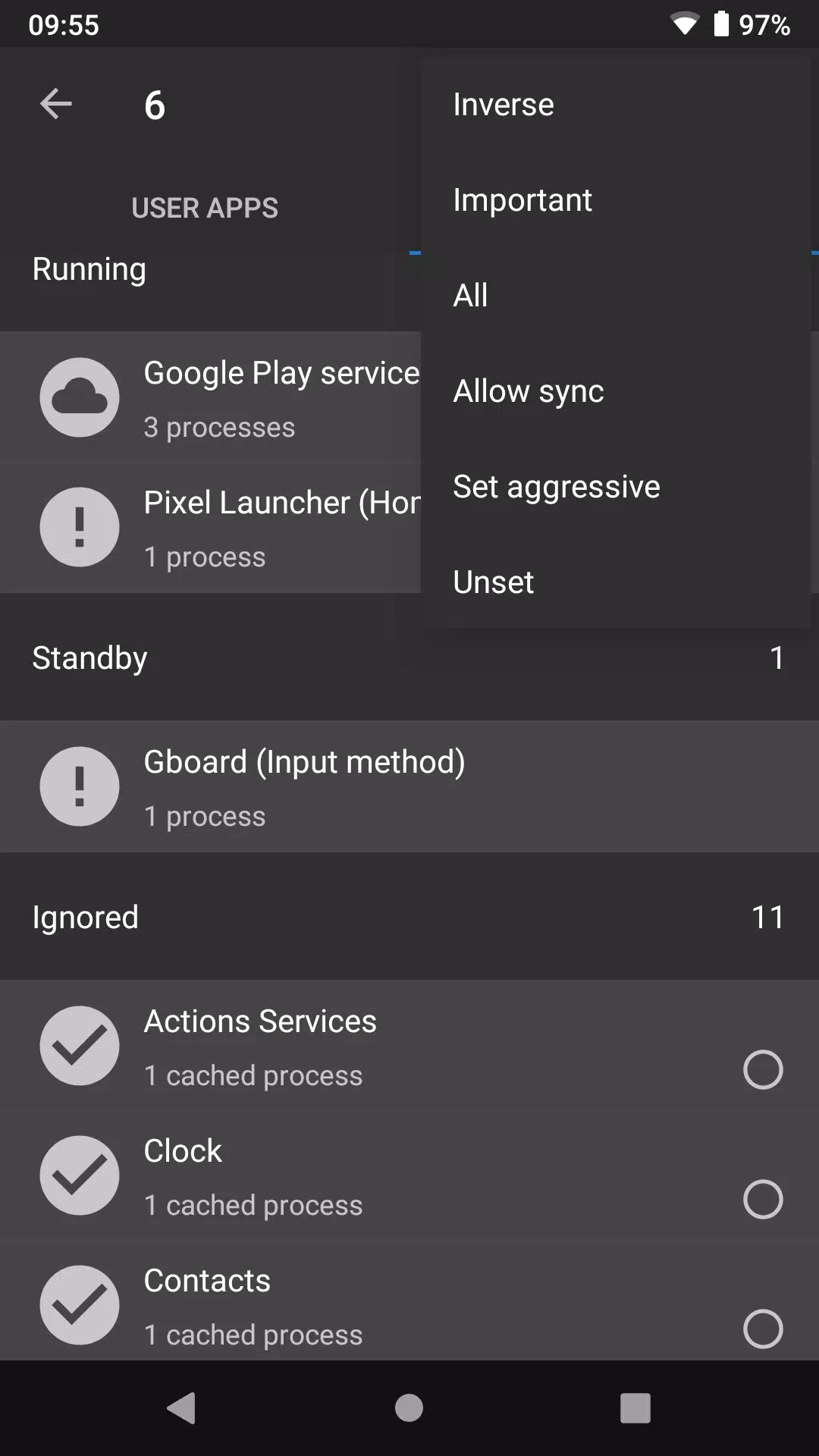
Brevent includes an Allow sync option for individual apps. When enabled, the selected app can continue the background synchronization it needs and deliver notifications. This is useful for applications where timely messages or updates matter, while still allowing you to restrict unwanted background activity elsewhere. Allow sync can be enabled or disabled separately for each managed app.
How is Brevent activated without root?
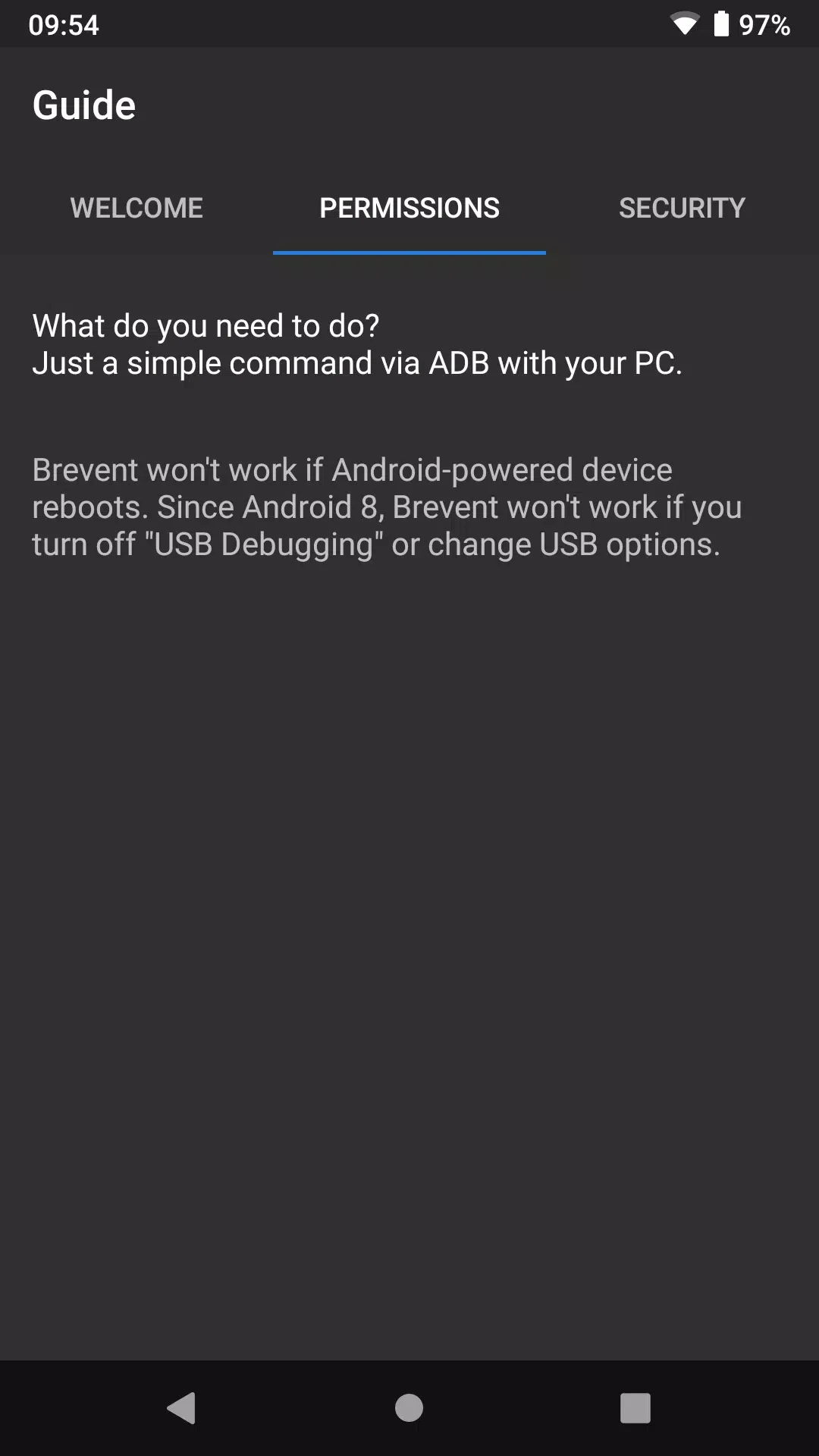
Initial activation can be completed through WebUSB at brevent.sh in Chrome or Edge, or by running a single adb command from a computer. You must first enable USB debugging or wireless debugging in Android's developer options. The activation pairs the device and starts the Brevent service; Android may also ask you to confirm an RSA key.
For wireless debugging, the supplied setup steps are to open Developer Options, enable Wireless debugging, choose Link Device, and enter the displayed sync code in Brevent. Split-screen mode may make entering the code easier. After activation, the service continues working until the next reboot, after which activation may be needed again.
Which Android devices and versions does it support?
Brevent is described as supporting a broad range of Android versions and wireless debugging on supported devices. App standby behavior can vary between manufacturers, so some phones or tablets may not provide every standby state. When that happens, Brevent can still apply its force-stop logic when its conditions are met. The available source does not specify a minimum Android version.
What does the listed release history include?
The supplied changelog lists version 4.2.31.1 dated 2026/06/29 as trying to support Android 17 and trying to fix the “Checking Brevent server” issue. Version 4.2.29.1, dated 2026/01/24, is listed as fixing a tablet crash introduced in 4.2.28 and removing some payment requirement. Version 4.2.28.2, dated 2026/01/20, is listed as fixing some issues in Android vitals.
Brevent may therefore suit Android users who want app-by-app control over background operation, need to preserve notifications for selected services, and are comfortable using developer options for activation. It is particularly focused on selective standby and force-stop management rather than changing every app on the device.