

Advanced Download Manager Pro is an Android download manager for handling files from direct links and torrent sources. A download can be started by entering a link manually or placing it in the clipboard so the application can detect it. The app also includes browser tools for finding downloadable content and provides a central place to monitor and organize active and completed tasks.
Starting and controlling downloads
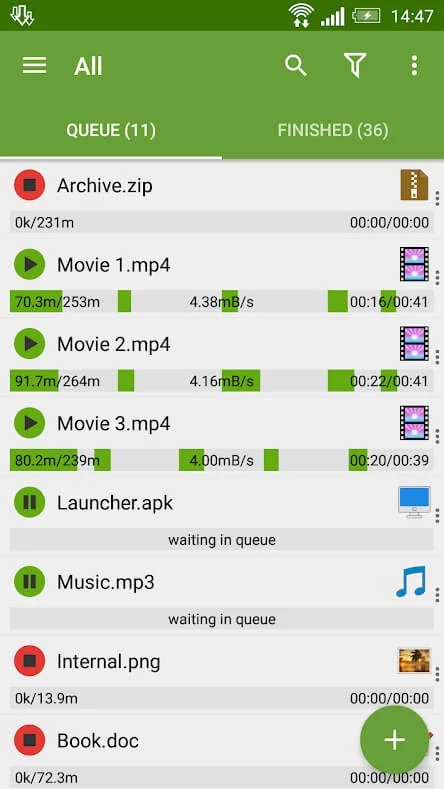
The application can manage several downloads in one workspace. Up to three files can download at the same time, while additional tasks remain in a queue. Queued items can be prioritized according to the order you need, which gives you control over which files are processed first.
Download tasks can be started or stopped through the task controls. Tapping a completed item opens the file, while pressing and holding a task expands its available controls. This provides a direct way to inspect and manage individual entries without leaving the download list.
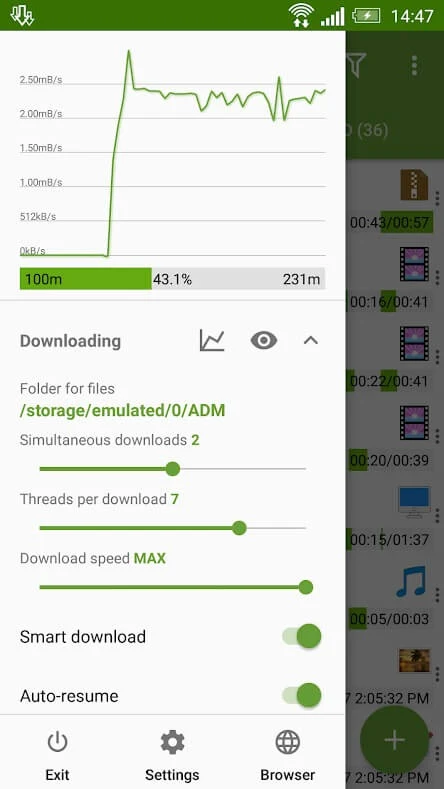
Advanced Download Manager Pro also displays download speed and upload speed information. It can show whether a file is connected to its server, allowing you to monitor the current state of a task while it is in progress. Download links can be added manually when automatic link handling is not used.
Torrent and browser tools
Torrent downloading is included alongside regular file downloads. Torrent tasks can be categorized and managed within the same application, with their place in the queue and other task details available for review. The source describes the torrent downloader as part of the app's broader set of download controls.
Built-in browser tools are provided to help Android users locate downloadable files while browsing. When a suitable link is found, it can be passed to the download manager. This combines browsing and task management in one workflow instead of requiring every link to be copied between separate applications.
Storage and file management
Before starting a download, you can choose the folder where the resulting file should be stored. The source supports selecting either internal or external storage, so files can be placed according to your available device locations. Downloaded items remain accessible through the application after the transfer is complete.
File organization continues after downloading. You can copy or save download lists, rename downloaded files, and move them to a different folder through the app's file controls. These options are intended to keep stored content arranged and make previously downloaded items easier to locate.
The application can also assign a destination folder through the task information area before the download begins. If that destination needs to change later, the corresponding folder controls can be used to update the location rather than starting the download again.
Scheduling and interface settings
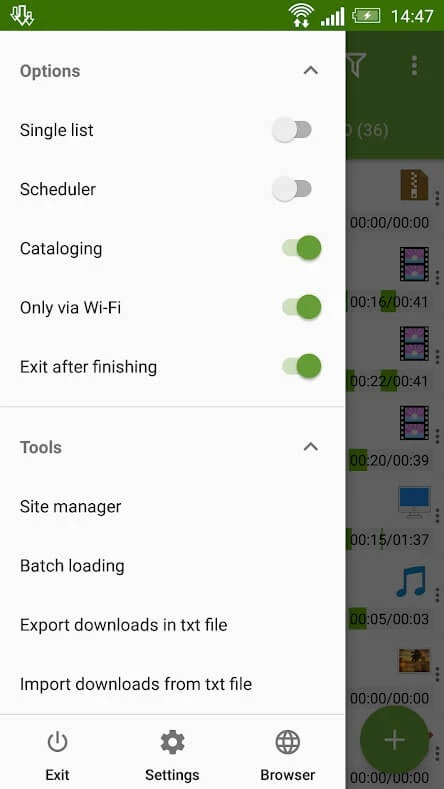
Recurring or time-sensitive downloads can be arranged with the built-in download scheduler. You can set a task for a chosen time, allowing the download to be managed according to a planned schedule instead of being started immediately.
The interface includes settings for changing colors, themes, and related icons. These options adjust the presentation of the download manager while the main interface keeps download information and controls together. The app also provides commands that can be configured for common interactions, including the controls used to start, stop, open, and organize tasks.